Infolinks In Text Ads

Showing posts with label web design. Show all posts

Wednesday, 26 February 2014

Top Websites To Learn Computer Programming Languages

Learn Computer Programming
 

   Have you Ever wanted to learn computer programming languages, but didn't know where to start? Well Today learning programming languages is not really a hard job. If you are a beginner and have aptitude to learn computer programming then you can accomplish this goal within a few months. Here are the top websites, which are useful for learning programming.

1. W3schools

If you are a beginner or intermediate programmer, then w3schools is an excellent website for learning programming. W3schools offer tutorials for a variety of web programming and scripting languages such as html, html5, css, asp, Ajax, JavaScript, php, jQuery etc. So, if you are into web development then w3schools would be a great learning resource.


Learn Computer Programming

   2. Codeavengers

If you want learn coding for making games, apps or websites using html/html5, css3, JavaScript python, but want an entertaining teaching resource. Then codeavengers.com is ideal choice for you. Codeavengers.com was designed by keeping difficulty for beginners in mind. It provides a fun and interactive learning environment that is effective for all age groups. Even if you are an intermediate programmer, you might find some great learning stuff there.

Learn Computer Programming

3. Codecademy

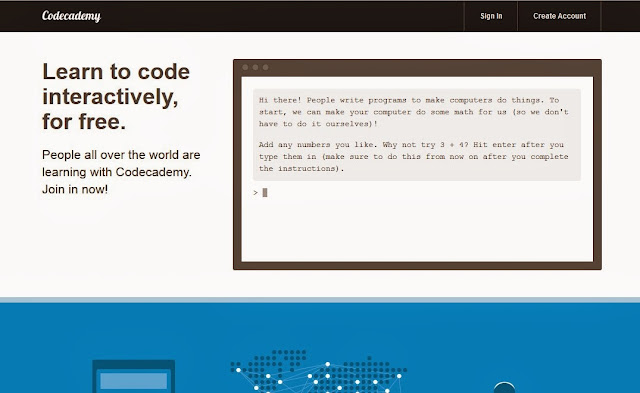
Codeacademy is another great website, for learning languages like JavaScript, HTML/CSS, PHP, Python, and Ruby. You can even learn how to use some popular web APIs in your website or app.  Codeacademy has a great modern learning system, which is based on user interaction. It has full-fledged programming courses for beginners. Again, this website is great for beginners and intermediate learners. But advanced programmers can also find some pretty useful stuff there.
 Learn Computer Programming


 4. tutorialspoint

 Tutorialspoint has tutorials for a lot of web, high level and scripting languages that are commonly used today. You can find tutorials for any computer language that you have ever heard of (those that are currently in used). Apart from that, it also features a variety of tutorials for other fields such as DIP, OS, SEO, Telecom, DBMS, and frameworks etc.  Some commonly used languages that you can learn there are: Java, C++, PHP, Python, Ruby, C#, Perl, VB.Net, ios.

 Learn Computer Programming


 5. msdn.microsoft

 Although, beginner programmers might find MSDN (Microsoft Developer Network) a tough learning resource, it is still the best resource you can get, if you want to master Microsoft oriented languages such as VB.Net, C# etc. MSDN has great tutorials for beginners, intermediate and advance programmers.

Learn Computer Programming


 But as I stated earlier, beginners might not be initially comfortable with MDSN, as I has really a lot of resources that it would be a hard time for beginners to find what they are looking for. But if you get used to MSDN, then it is the ideal learning point for Microsoft oriented languages. You can get a lot of sample applications, tutorials and resources that are uploaded by Microsoft and MSDN community. Since it’s a developer’s network, you can even find development help from community members.

 6. Lynda

 You might already know about Lynda.com. Lynda offers easy to follow video tutorials. Lynda.com is an old and well established tutoring site, if you are looking for video tutorials to learn computer languages, then Lynda is your ideal choice. Apart from programming languages, Lynda also offers tutorials for a variety of other fields such as 3D modeling, CAD, Photography etc. Lynda.com is an old and well established tutoring site.
 Learn Computer Programming


7. codeschool

Just learning. Code School teaches web technologies in the comfort of your browser with video lessons, coding challenges, and screencasts. View Our Courses.

8. teamtreehouse

 Design · Web Development · iOS Development · Android Development · WordPress Development · Get in touch.

9. quackit

Quackit teaches beginners how to create websites. We start off slowly, teaching you the basics such as HTML and CSS. We then introduce you to more ...

10. thenewboston

 3Ds Max 2010 (22 Videos) · CSS3 Awesome Footer Tutorial (27 Videos) · How to Build a Computer (23 Videos) · HTML5 (53 Videos) · MySQL Database (33 ...

 11. errorless-c

 There are many c programming topics and Other programs for practice.There are ... Compile and run this code in Turbo c++.submitted by owner of errorless-c.


Sunday, 9 February 2014

20 Great Google Secrets


20 Great Google Secrets


Google is clearly the best general-purpose search engine on the Web

But most people don’t use it to its best advantage. Do you just plug in a keyword or two and hope for the best? That may be the quickest way to search, but with more than 3 billion pages in Google’s index, it’s still a struggle to pare results to a manageable number.

But Google is an remarkably powerful tool that can ease and enhance your Internet exploration. Google’s search options go beyond simple keywords, the Web, and even its own programmers. Let’s look at some of Google’s lesser-known options.

Syntax Search Tricks

Using a special syntax is a way to tell Google that you want to restrict your searches to certain elements or characteristics of Web pages. Google has a fairly complete list of its syntax elements at

google.com/help/operators

. Here are some advanced operators that can help narrow down your search results.

Intitle: at the beginning of a query word or phrase (intitle:”Three Blind Mice”) restricts your search results to just the titles of Web pages.

Intext: does the opposite of intitle:, searching only the body text, ignoring titles, links, and so forth. Intext: is perfect when what you’re searching for might commonly appear in URLs. If you’re looking for the term HTML, for example, and you don’t want to get results such as

mysite

, you can enter intext:html.

Link: lets you see which pages are linking to your Web page or to another page you’re interested in. For example, try typing in

link:http://www.victorrichworld.com

Try using site: (which restricts results to top-level domains) with intitle: to find certain types of pages. For example, get scholarly pages about Mark Twain by searching for intitle:”Mark Twain”site:edu. Experiment with mixing various elements; you’ll develop several strategies for finding the stuff you want more effectively. The site: command is very helpful as an alternative to the mediocre search engines built into many sites.

Swiss Army Google

Google has a number of services that can help you accomplish tasks you may never have thought to use Google for. For example, the new calculator feature

(google.com/help/features.html#calculator)

lets you do both math and a variety of conversions from the search box. For extra fun, try the query “Answer to life the universe and everything.”

Let Google help you figure out whether you’ve got the right spelling—and the right word—for your search. Enter a misspelled word or phrase into the query box (try “thre blund mise”) and Google may suggest a proper spelling. This doesn’t always succeed; it works best when the word you’re searching for can be found in a dictionary. Once you search for a properly spelled word, look at the results page, which repeats your query. (If you’re searching for “three blind mice,” underneath the search window will appear a statement such as Searched the web for “three blind mice.”) You’ll discover that you can click on each word in your search phrase and get a definition from a dictionary.

Suppose you want to contact someone and don’t have his phone number handy. Google can help you with that, too. Just enter a name, city, and state. (The city is optional, but you must enter a state.) If a phone number matches the listing, you’ll see it at the top of the search results along with a map link to the address. If you’d rather restrict your results, use rphonebook: for residential listings or bphonebook: for business listings. If you’d rather use a search form for business phone listings, try Yellow Search

(buzztoolbox.com/google/yellowsearch.).

Extended Googling

Google offers several services that give you a head start in focusing your search. Google Groups

(groups.google)

indexes literally millions of messages from decades of discussion on Usenet. Google even helps you with your shopping via two tools: Froogle
CODE
(froogle.google),

which indexes products from online stores, and Google Catalogs
CODE
(http://catalogs.google.com),

which features products from more 6,000 paper catalogs in a searchable index. And this only scratches the surface. You can get a complete list of Google’s tools and services at

http://www.google.com/options/index.html

You’re probably used to using Google in your browser. But have you ever thought of using Google outside your browser?

Google Alert

(googlealert)

monitors your search terms and e-mails you information about new additions to Google’s Web index. (Google Alert is not affiliated with Google; it uses Google’s Web services API to perform its searches.) If you’re more interested in news stories than general Web content, check out the beta version of Google News Alerts

(google.com/newsalerts).

This service (which is affiliated with Google) will monitor up to 50 news queries per e-mail address and send you information about news stories that match your query. (Hint: Use the intitle: and source: syntax elements with Google News to limit the number of alerts you get.)

Google on the telephone? Yup. This service is brought to you by the folks at Google Labs

(http://labs.google.com),

a place for experimental Google ideas and features (which may come and go, so what’s there at this writing might not be there when you decide to check it out). With Google Voice Search

(http://labs1.google.com/gvs.html),

you dial the Voice Search phone number, speak your keywords, and then click on the indicated link. Every time you say a new search term, the results page will refresh with your new query (you must have JavaScript enabled for this to work). Remember, this service is still in an experimental phase, so don’t expect 100 percent success.

In 2002, Google released the Google API (application programming interface), a way for programmers to access Google’s search engine results without violating the Google Terms of Service. A lot of people have created useful (and occasionally not-so-useful but interesting) applications not available from Google itself, such as Google Alert. For many applications, you’ll need an API key, which is available free from
CODE
google.com/apis

Thanks to its many different search properties, Google goes far beyond a regular search engine. Give the tricks in this article a try. You’ll be amazed at how many different ways Google can improve your Internet searching.

Hack webcams using google

Hack webcams using google

I will show you how to use a simple Google Dork to hack unprotected webcams online.There are thousands of unprotected webcams available online, Since many Webcams use known protocols to transmit live video streams over the web, it’s often very easy to search for publicly accessible webcams

1.First of all open your Internet browser and visit Google
2.Search on Google for the following Keyword 

“inurl:/view.index.shtml”

3. Next Choose a webcam and Enjoy

Google Dorks

Here is the list of Few Google Dorks used for this purpose:

inurl:/view.shtml
intitle:”Live View / – AXIS” | inurl:view/view.shtml^
inurl:ViewerFrame?Mode=
inurl:ViewerFrame?Mode=Refresh
inurl:axis-cgi/jpg
inurl:axis-cgi/mjpg (motion-JPEG)
inurl:view/indexFrame.shtml
inurl:view/index.shtml
inurl:view/view.shtml
liveapplet
intitle:”live view” intitle:axis
intitle:liveapplet
allintitle:”Network Camera NetworkCamera”
intitle:axis intitle:”video server”
intitle:liveapplet inurl:LvAppl
intitle:”EvoCam” inurl:”webcam.html”
intitle:”Live NetSnap Cam-Server feed”
intitle:”Live View / – AXIS”
intitle:”Live View / – AXIS 206M”
intitle:”Live View / – AXIS 206W”
intitle:”Live View / – AXIS 210″
inurl:indexFrame.shtml Axis
inurl:”MultiCameraFrame?Mode=Motion”
intitle:start inurl:cgistart
intitle:”WJ-NT104 Main Page”
intext:”MOBOTIX M1″ intext:”Open Menu”
intext:”MOBOTIX M10″ intext:”Open Menu”
intext:”MOBOTIX D10″ intext:”Open Menu”
intitle:snc-z20 inurl:home/
intitle:snc-cs3 inurl:home/
intitle:snc-rz30 inurl:home/
intitle:”sony network camera snc-p1″
intitle:”sony network camera snc-m1″
site:.viewnetcam.com -www.viewnetcam.com
intitle:”Toshiba Network Camera” user login
intitle:”netcam live image”
intitle:”i-Catcher Console – Web Monitor”


Watch STAR WARS Episode 4 on Command Prompt


Watch STAR WARS Episode

 4 on Command Prompt


1. Go to start > Run and type in cmd and press enter
2. Now type in telnet as shown below and press enter
After you press Enter, you will see the window like this:-

1)
2)
3. After that enter o as shown below and press enter.
4. Next enter towel.blinkenlights.nl as shown below and press Enter
5. Now star wars movie will start playing on your command prompt.
 

Friday, 24 January 2014

free unlimited sms

free unlimited sms 

Send and receive texts and MMS using your computer or mobile device. All destinations available. Supreme reliability. You can choose the phone number, including your own, to text from.
Plus, make VoIP calls from a computer using our Internet Phone service or from any compatible device. iPhone and Android apps. 

http://go.victorrichworld.com/5s


free voicesms word wide

free sms word wide 


http://go.victorrichworld.com/5r

Using Pumpsms we provide the service to send free SMS Texting From a computer. Send free Bulk text messages from this website to any operator. Do it all online. You will always enjoy our Free SMS text message Service. - See more at: pumpsms

make free calls to unlimited destination.

Apple iPhone 5 vs. Samsung Galaxy SIII (A Top Notch Comparison between Two Elites)

Apple iPhone 5 vs. Samsung

 Galaxy SIII (A Top Notch 

Comparison between Two Elites)

In a state where enthusiasts are puzzled and biased by many inaccurate comparisons and reviews, HackRead provides one of the best reviews for you to assess and take a firm decision. So, the hot topic ‘iPhone 5 vs. Samsung Galaxy S3’ is now going to be scrutinized in-depth, providing a comparison of high-tech features installed in both of these Goliath!

Build and Design:

Apple iPhone 5 possesses a unique design with a body made purely from glass and aluminium along with a metal casing, where the layer of glass on the rear is removed to make it as thin as possible. With a thickness of 7.6mm, it ranks above S3 where it is a whole 1mm thin than its rival. Despite having a non-removable battery, its mini-SIM and screen technology takes it far on to higher levels of user satisfaction for sure. In comparison, Samsung Galaxy S3 takes away all the glory with its availability of options for its casing’s color. Specifically, it offers a pebble-blue, marble-white and now a titanium grey color for your ultra-thin back cover. The finishing and build quality is exceptional, where the chances of it getting slipped from your hands are minimized. The weight of the Samsung Galaxy S3 is quite heavier than that of iPhone 5- Apple iPhone 5 weighs 3.9 oz while Galaxy S3 is 0.8 oz heavier (4.7 oz).


Screen (Display):

Apple surprised the market by introducing its smart phone 0.5in taller than its predecessor. Its 4-inch screen offers the same Retina display of 326ppi, along with an increment in its screen resolution to 1136 x 640. This certainly means that a whole extra row of apps could appear easily on the new Apple iPhone 5. In contrast, Samsung Galaxy S3 remained head high in the competition in terms of its display size and resolution. Its enormous 4.8in HD Super AMOLED screen, is something that is really a plus point for some tech-lovers; though, the width of it (71mm) is more than that of the iPhone 5 (58mm). It offers a screen resolution of 1280 x 720 pixels but has the capacity to display only 306ppi; nevertheless, 306ppi is something you will be definitely admiring.

Camera:

One would be surprised to see the features being the same to some extent. Both phones have an 8MP with an increased resolution of 3264 x 2448, autofocus and LED flash, but some auxiliary features of both the giants make them standout. Considering the Apple iPhone 5, the phone comes with a camera holding the capability to take some awe-inspiring images in a flash. With a revolutionary f/2.4 aperture and more durable sapphire crystal lens, photo-snapping at night becomes more reliable and effective together with the dynamic low-light mode. Additionally, the iPhone 5 offers a 720p HD video recording from its front-facing camera, where both the front and rear ones can easily benefit from the Share Photo Streams. Coming to the Samsung Galaxy S3, the phone, along with the similarities with its rival, comprises one of the best photo-snapping features in the market. It enables users to take continuous shots at 6fps in the burst mode, then shortlists them under the criteria of best smile & blink detection, blurring and contrast. In addition, the phone also features a 1.9MP camera on the front. Moreover, Samsung assures its fans to have a zero shutter lag and a Face-Zoom feature where one can easily zoom to a face out of thousands in a crowd!


Power and Storage:

Apple iPhone 5 features its own processor, this time possessing a dual-core A6 chip which is claimed by Apple to offer double the processor speed and faster graphics display. So to all fanatics out there, expect faster browsing, quick launching of apps and improved performance on the whole from the iPhone 5! Where, the iPhone expects to deliver a better show, the Samsung Galaxy S3 has installed their own 1.4 GHz quad core Exynos processor with a reinforcement of 1 GB RAM, enabling rigorous usage of apps. Apart from the processor specs, the flash storage capacity of Apple iPhone and Samsung Galaxy S3 together, comes with 16 GB, 32 GB and 64 GB storage options. The difference is the availability of a micro-SD slot in S3 which enables expansion options, along with 50 GB of free storage on Dropbox that would be enough for the coming years.

Operating System and Connectors:

Well, as users anticipated, the Apple iPhone 5 has been launched with a new operating system- iOS 6. It guarantees consumer satisfaction in terms of speed and reliability, offering an enhanced interface with plenty of features. Some features include, the iCloud support, FaceTime, and a better Siri than before. Samsung Galaxy S3, consisting of a standard Android 4.0 Ice Cream Sandwich operating system. It has certainly been streamlined, facilitating users with S Voice which directly gives you the charge of functioning it with your voice effectively. Unlike the iPhone’s Siri, it doesn’t provide you with a pithy feedback. The iPhone 5 also features its Apple lightening connectivity ports, while S3 sticks to the micro-USB connectors till now.

Battery and Networking:

The battery is quite the same of the Apple iPhone 5 compared to 4S, having a talk time of 8 hours on 3G or LTE networks, and 10 hours on Wi-Fi. Apple also claims that the iPhone 5 will be able to operate an enormous 40 hours of audio. In comparison, Samsung Galaxy S3 offers a 2100mAh battery which holds the potential to provide 11 hours and 40 minutes on 3G networks to be precise. While on standby mode, the iPhone 5 can run only 225 hours as compared to S3, which can operate 790 hours continuous! In addition, both phones come with Wi-Fi, 2G, 3G, LTE and the new 4G networking facility which the phones offer awesome compatibility.

The war would never end between these two colossal extremes, but just to top it off, Samsung Galaxy S3 is much flexible and reliable, with better speeds and expansion facilities. Even if it possesses a bigger display, some may find it uncomfortable to use. However, the Apple iPhone 5’s premium casing, design, and color may attract users to give an expensive look, giving an attractive look to their personality. Moreover, a 4-inch screen is quite big enough for consumers if display size is a problem.

Vulnerability in Samsung Galaxy S4 allows hacker to track emails and record communication data

Vulnerability in Samsung Galaxy

 S4 allows hacker to track emails

and record communication data 


Critical vulnerability in Samsung Galaxy S4 allows hacker to install a malicious code, track emails and record sensitive communication data. 


An Israeli security researcher Mordechai Guri, from Israel’s Ben-Gurion University has found critical vulnerability in Samsung’s best-selling Galaxy S4 smartphone with Knox- security platform enable on it.

Security researcher told The Wall Street Journal that this vulnerability allows hackers to install malicious software on the phone which records all sorts of communication data and tracks emails.

Samsung has replied on the issue, saying that the company was looking in to the vulnerability but didn’t find it to be a serious threat as described by the Israeli security researcher. The company has promised to investigate the researcher’s claim in depth.

    ‘’Samsung takes all security vulnerability claims very seriously, we promise to investigate the claims seriously, ‘’ however, the threat appears to be equivalent to some well-known attacks. Rest assured, the core Knox architecture cannot be compromised or infiltrated by such malware’’


Guri claims that he has found critical vulnerability in Samsung’s new security platform called Knox. It allows hackers to “easily intercept” the user data of Galaxy S4 smartphone with Knox- security platform enable on it.

The vulnerability can further be exploited and can be used to execute dangerous codes and modify data according to hacker’s command.

    ‘’The new unveiled vulnerability presents a serious threat to all users of phones based on this architecture, such as users of the Samsung Galaxy S4.’’

Guri has come up with his research at a crucial time when Samsung is pitching the pentagon and other security agencies in U.S over Knox security platform.

U.S. Department of Defense has cleared its position in a statement that:

    ‘’ Government will not comment on possible vulnerabilities, however, it will not allow use of a device until proven secure.’’

Sunday, 5 January 2014

How To Check Balance OF A Credit Card

This is for educational purposes, 
The author is not responsible for 
any action done by you.  

How To Check Balance OF A Credit Card  

 Hello dear friends

Today I will showing you how to check the balance of a card.

First of all, you will need to download Skype.

After that go to bindb.com and check the bin of the card, for example I will

use bin 658147.

When you scroll down you should see a bank telephone number, in this case

 is +1-320-937-8937 (chase bank). Call this number from Skype (it's free since

 it's toll free) and the automatic robot will tell you to put your full card

 number and CVV. You will do that using the keypad from Skype. It will

 automatically tell you the balance of the card which is available.

It have been tested and it's working perfectly!!!


Nmap Command Examples For Network Admins part 5

This is for educational purposes, 
The author is not responsible for 
any action done by you.  


#30: Not a fan of command line tools?

Try zenmap the official network mapper front end:

    Zenmap is the official Nmap Security Scanner GUI. It is a multi-platform (Linux, Windows, Mac OS X, BSD, etc.) free and open source application which aims to make Nmap easy for beginners to use while providing advanced features for experienced Nmap users. Frequently used scans can be saved as profiles to make them easy to run repeatedly. A command creator allows interactive creation of Nmap command lines. Scan results can be saved and viewed later. Saved scan results can be compared with one another to see how they differ. The results of recent scans are stored in a searchable database.

You can install zenmap using the following apt-get command:


$ sudo apt-get install zenmap


Sample outputs:

[sudo] password for vivek:
Reading package lists... Done
Building dependency tree
Reading state information... Done
The following NEW packages will be installed:
  zenmap
0 upgraded, 1 newly installed, 0 to remove and 11 not upgraded.
Need to get 616 kB of archives.
After this operation, 1,827 kB of additional disk space will be used.
Get:1 http://debian.osuosl.org/debian/ squeeze/main zenmap amd64 5.00-3 [616 kB]
Fetched 616 kB in 3s (199 kB/s)
Selecting previously deselected package zenmap.
(Reading database ... 281105 files and directories currently installed.)
Unpacking zenmap (from .../zenmap_5.00-3_amd64.deb) ...
Processing triggers for desktop-file-utils ...
Processing triggers for gnome-menus ...
Processing triggers for man-db ...
Setting up zenmap (5.00-3) ...
Processing triggers for python-central ...


Type the following command to start zenmap:


$ sudo zenmap


Sample outputs:: 


Fig.02: zenmap in action


The nmap command has many more options, please go through man page or the documentation for more information. What are some of your favorite nmap command-line tricks? Share your favorite tips, tricks, and advice in the comments below.

Nmap Command Examples For Network Admins part 4

This is for educational purposes, 
The author is not responsible for 
any action done by you.  


#18: How do I detect remote services (server / daemon) version numbers?

nmap -sV 192.168.1.1

Sample outputs:

Starting Nmap 5.00 ( http://nmap.org ) at 2012-11-27 01:34 IST
Interesting ports on 192.168.1.1:
Not shown: 998 closed ports
PORT   STATE SERVICE VERSION
22/tcp open  ssh     Dropbear sshd 0.52 (protocol 2.0)
80/tcp open  http?
1 service unrecognized despite returning data.

#19: Scan a host using TCP ACK (PA) and TCP Syn (PS) ping

If firewall is blocking standard ICMP pings, try the following host discovery methods:

nmap -PS 192.168.1.1

nmap -PS 80,21,443 192.168.1.1

nmap -PA 192.168.1.1

nmap -PA 80,21,200-512 192.168.1.1

#20: Scan a host using IP protocol ping

nmap -PO 192.168.1.1

#21: Scan a host using UDP ping

This scan bypasses firewalls and filters that only screen TCP:

nmap -PU 192.168.1.1

nmap -PU 2000.2001 192.168.1.1

#22: Find out the most commonly used TCP ports using TCP SYN Scan


---- Stealthy scan ----

nmap -sS 192.168.1.1

---- Find out the most commonly used TCP ports using  TCP connect scan (warning: no stealth scan)

----  OS Fingerprinting ----

nmap -sT 192.168.1.1

----  Find out the most commonly used TCP ports using TCP ACK scan

nmap -sA 192.168.1.1

---- Find out the most commonly used TCP ports using TCP Window scan

nmap -sW 192.168.1.1

---  Find out the most commonly used TCP ports using TCP Maimon scan

nmap -sM 192.168.1.1


#23: Scan a host for UDP services (UDP scan)

Most popular services on the Internet run over the TCP protocol. DNS, SNMP, and DHCP are three of the most common UDP services. Use the following syntax to find out UDP services:

nmap -sU nas03

nmap -sU 192.168.1.1

Sample outputs:


Starting Nmap 5.00 ( http://nmap.org ) at 2012-11-27 00:52 IST
Stats: 0:05:29 elapsed; 0 hosts completed (1 up), 1 undergoing UDP Scan
UDP Scan Timing: About 32.49% done; ETC: 01:09 (0:11:26 remaining)
Interesting ports on nas03 (192.168.1.12):
Not shown: 995 closed ports
PORT     STATE         SERVICE
111/udp  open|filtered rpcbind
123/udp  open|filtered ntp
161/udp  open|filtered snmp
2049/udp open|filtered nfs
5353/udp open|filtered zeroconf
MAC Address: 00:11:32:11:15:FC (Synology Incorporated)

Nmap done: 1 IP address (1 host up) scanned in 1099.55 seconds


#24: Scan for IP protocol

This type of scan allows you to determine which IP protocols (TCP, ICMP, IGMP, etc.) are supported by target machines:

nmap -sO 192.168.1.1

#25: Scan a firewall for security weakness

The following scan types exploit a subtle loophole in the TCP and good for testing security of common attacks:


---  TCP Null Scan to fool a firewall to generate a response ---

--- Does not set any bits (TCP flag header is 0) ---

nmap -sN 192.168.1.254

--- TCP Fin scan to check firewall ---
--- Sets just the TCP FIN bit ---

nmap -sF 192.168.1.254

--- TCP Xmas scan to check firewall---
--- Sets the FIN, PSH, and URG flags, lighting the packet up like a Christmas tree ---

nmap -sX 192.168.1.254


See how to block Xmas packkets, syn-floods and other conman attacks with iptables.
#26: Scan a firewall for packets fragments

The -f option causes the requested scan (including ping scans) to use tiny fragmented IP packets. The idea is to split up the TCP header over
several packets to make it harder for packet filters, intrusion detection systems, and other annoyances to detect what you are doing.

nmap -f 192.168.1.1

nmap -f hackingterritory.b..

nmap -f 15 hackingterritory.b..


--- Set your own offset size with the --mtu option ---

nmap --mtu 32 192.168.1.1

#27: Cloak a scan with decoys

The -D option it appear to the remote host that the host(s) you specify as decoys are scanning the target network too. Thus their IDS might report 5-10 port scans from unique IP addresses, but they won't know which IP was scanning them and which were innocent decoys:

nmap -n -Ddecoy-ip1,decoy-ip2,your-own-ip,decoy-ip3,decoy-ip4 remote-host-ip

nmap -n -D192.168.1.5,10.5.1.2,172.1.2.4,3.4.2.1 192.168.1.5

#28: Scan a firewall for MAC address spoofing


---- Spoof your MAC address ----

nmap --spoof-mac MAC-ADDRESS-HERE 192.168.1.1

--- Add other options ---

nmap -v -sT -PN --spoof-mac MAC-ADDRESS-HERE 192.168.1.1


--- Use a random MAC address ---

--- The number 0, means nmap chooses a completely random MAC address ---

nmap -v -sT -PN --spoof-mac 0 192.168.1.1


#29: How do I save output to a text file?

The syntax is:

nmap 192.168.1.1 > output.txt

nmap -oN /path/to/filename 192.168.1.1

nmap -oN output.txt 192.168.1.1


Nmap Command Examples For Network Admins part 3

This is for educational purposes, 
The author is not responsible for 
any action done by you.  


#6: Find out if a host/network is protected by a firewall

nmap -sA 192.168.1.254

nmap -sA server1.hackingterritory.b...

#7: Scan a host when protected by the firewall

nmap -PN 192.168.1.1

nmap -PN server1.hackingterritory.b....

#8: Scan an IPv6 host/address

The -6 option enable IPv6 scanning. The syntax is:

nmap -6 IPv6-Address-Here

nmap -6 server1.hackingterritory.b....

nmap -6 2607:f0d0:1002:51::4

nmap -v A -6 2607:f0d0:1002:51::4


#9: Scan a network and find out which servers and devices are up and running

This is known as host discovery or ping scan:

nmap -sP 192.168.1.0/24

Sample outputs:

Host 192.168.1.1 is up (0.00035s latency).
MAC Address: BC:AE:C5:C3:16:93 (Unknown)
Host 192.168.1.2 is up (0.0038s latency).
MAC Address: 74:44:01:40:57:FB (Unknown)
Host 192.168.1.5 is up.
Host nas03 (192.168.1.12) is up (0.0091s latency).
MAC Address: 00:11:32:11:15:FC (Synology Incorporated)
Nmap done: 256 IP addresses (4 hosts up) scanned in 2.80 second

#10: How do I perform a fast scan?

nmap -F 192.168.1.1

#11: Display the reason a port is in a particular state

nmap --reason 192.168.1.1

nmap --reason server1.hackingterritory.b...

#12: Only show open (or possibly open) ports

nmap --open 192.168.1.1

nmap --open server1.hackingterritory.b....

#13: Show all packets sent and received

nmap --packet-trace 192.168.1.1

nmap --packet-trace server1.hackingterritory.b...

14#: Show host interfaces and routes

This is useful for debugging (ip command or route command or netstat command like output using nmap)

nmap --iflist

Sample outputs:

Starting Nmap 5.00 ( http://nmap.org ) at 2012-11-27 02:01 IST
************************INTERFACES************************
DEV    (SHORT)  IP/MASK          TYPE        UP MAC
lo     (lo)     127.0.0.1/8      loopback    up
eth0   (eth0)   192.168.1.5/24   ethernet    up B8:AC:6F:65:31:E5
vmnet1 (vmnet1) 192.168.121.1/24 ethernet    up 00:50:56:C0:00:01
vmnet8 (vmnet8) 192.168.179.1/24 ethernet    up 00:50:56:C0:00:08
ppp0   (ppp0)   10.1.19.69/32    point2point up

**************************ROUTES**************************
DST/MASK         DEV    GATEWAY
10.0.31.178/32   ppp0
209.133.67.35/32 eth0   192.168.1.2
192.168.1.0/0    eth0
192.168.121.0/0  vmnet1
192.168.179.0/0  vmnet8
169.254.0.0/0    eth0
10.0.0.0/0       ppp0
0.0.0.0/0        eth0   192.168.1.2


#15: How do I scan specific ports?

map -p [port] hostName

---- Scan port 80

nmap -p 80 192.168.1.1

----  Scan TCP port 80

nmap -p T:80 192.168.1.1

---  Scan UDP port 53

nmap -p U:53 192.168.1.1

---  Scan two ports ---

nmap -p 80,443 192.168.1.1

---  Scan port ranges ---

nmap -p 80-200 192.168.1.1

---  Combine all options ----

nmap -p U:53,111,137,T:21-25,80,139,8080 192.168.1.1

nmap -p U:53,111,137,T:21-25,80,139,8080 server1.hackingterritory.b...

nmap -v -sU -sT -p U:53,111,137,T:21-25,80,139,8080 192.168.1.254

--- Scan all ports with * wildcard ----
nmap -p "*" 192.168.1.1

--- Scan top ports i.e. scan $number most common ports ---
nmap --top-ports 5 192.168.1.1

nmap --top-ports 10 192.168.1.1


Sample outputs:

Starting Nmap 5.00 ( http://nmap.org ) at 2012-11-27 01:23 IST
Interesting ports on 192.168.1.1:
PORT     STATE  SERVICE
21/tcp   closed ftp
22/tcp   open   ssh
23/tcp   closed telnet
25/tcp   closed smtp
80/tcp   open   http
110/tcp  closed pop3
139/tcp  closed netbios-ssn
443/tcp  closed https
445/tcp  closed microsoft-ds
3389/tcp closed ms-term-serv
MAC Address: BC:AE:C5:C3:16:93 (Unknown)

Nmap done: 1 IP address (1 host up) scanned in 0.51 seconds


#16: The fastest way to scan all your devices/computers for open ports ever

nmap -T5 192.168.1.0/24

#17: How do I detect remote operating system?

You can identify a remote host apps and OS using the -O option:


nmap -O 192.168.1.1

nmap -O  --osscan-guess 192.168.1.1

nmap -v -O --osscan-guess 192.168.1.1

Sample outputs:

Starting Nmap 5.00 ( http://nmap.org ) at 2012-11-27 01:29 IST
NSE: Loaded 0 scripts for scanning.
Initiating ARP Ping Scan at 01:29
Scanning 192.168.1.1 [1 port]
Completed ARP Ping Scan at 01:29, 0.01s elapsed (1 total hosts)
Initiating Parallel DNS resolution of 1 host. at 01:29
Completed Parallel DNS resolution of 1 host. at 01:29, 0.22s elapsed
Initiating SYN Stealth Scan at 01:29
Scanning 192.168.1.1 [1000 ports]
Discovered open port 80/tcp on 192.168.1.1
Discovered open port 22/tcp on 192.168.1.1
Completed SYN Stealth Scan at 01:29, 0.16s elapsed (1000 total ports)
Initiating OS detection (try #1) against 192.168.1.1
Retrying OS detection (try #2) against 192.168.1.1
Retrying OS detection (try #3) against 192.168.1.1
Retrying OS detection (try #4) against 192.168.1.1
Retrying OS detection (try #5) against 192.168.1.1
Host 192.168.1.1 is up (0.00049s latency).
Interesting ports on 192.168.1.1:
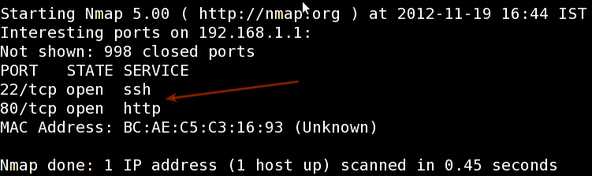
Not shown: 998 closed ports
PORT   STATE SERVICE
22/tcp open  ssh
80/tcp open  http
MAC Address: BC:AE:C5:C3:16:93 (Unknown)
Device type: WAP|general purpose|router|printer|broadband router
Running (JUST GUESSING) : Linksys Linux 2.4.X (95%), Linux 2.4.X|2.6.X (94%), MikroTik RouterOS 3.X (92%), Lexmark embedded (90%), Enterasys embedded (89%), D-Link Linux 2.4.X (89%), Netgear Linux 2.4.X (89%)
Aggressive OS guesses: OpenWrt White Russian 0.9 (Linux 2.4.30) (95%), OpenWrt 0.9 - 7.09 (Linux 2.4.30 - 2.4.34) (94%), OpenWrt Kamikaze 7.09 (Linux 2.6.22) (94%), Linux 2.4.21 - 2.4.31 (likely embedded) (92%), Linux 2.6.15 - 2.6.23 (embedded) (92%), Linux 2.6.15 - 2.6.24 (92%), MikroTik RouterOS 3.0beta5 (92%), MikroTik RouterOS 3.17 (92%), Linux 2.6.24 (91%), Linux 2.6.22 (90%)
No exact OS matches for host (If you know what OS is running on it, see http://nmap.org/submit/ ).
TCP/IP fingerprint:
OS:SCAN(V=5.00%D=11/27%OT=22%CT=1%CU=30609%PV=Y%DS=1%G=Y%M=BCAEC5%TM=50B3CA
OS:4B%P=x86_64-unknown-linux-gnu)SEQ(SP=C8%GCD=1%ISR=CB%TI=Z%CI=Z%II=I%TS=7
OS:)OPS(O1=M2300ST11NW2%O2=M2300ST11NW2%O3=M2300NNT11NW2%O4=M2300ST11NW2%O5
OS:=M2300ST11NW2%O6=M2300ST11)WIN(W1=45E8%W2=45E8%W3=45E8%W4=45E8%W5=45E8%W
OS:6=45E8)ECN(R=Y%DF=Y%T=40%W=4600%O=M2300NNSNW2%CC=N%Q=)T1(R=Y%DF=Y%T=40%S
OS:=O%A=S+%F=AS%RD=0%Q=)T2(R=N)T3(R=N)T4(R=Y%DF=Y%T=40%W=0%S=A%A=Z%F=R%O=%R
OS:D=0%Q=)T5(R=Y%DF=Y%T=40%W=0%S=Z%A=S+%F=AR%O=%RD=0%Q=)T6(R=Y%DF=Y%T=40%W=
OS:0%S=A%A=Z%F=R%O=%RD=0%Q=)T7(R=N)U1(R=Y%DF=N%T=40%IPL=164%UN=0%RIPL=G%RID
OS:=G%RIPCK=G%RUCK=G%RUD=G)IE(R=Y%DFI=N%T=40%CD=S)
Uptime guess: 12.990 days (since Wed Nov 14 01:44:40 2012)
Network Distance: 1 hop
TCP Sequence Prediction: Difficulty=200 (Good luck!)
IP ID Sequence Generation: All zeros
Read data files from: /usr/share/nmap
OS detection performed. Please report any incorrect results at http://nmap.org/submit/ .
Nmap done: 1 IP address (1 host up) scanned in 12.38 seconds
           Raw packets sent: 1126 (53.832KB) | Rcvd: 1066 (46.100KB)

See also: Fingerprinting a web-server and a dns server command line tools for more information.


Nmap Command Examples For Network Admins part 2

This is for educational purposes, 
The author is not responsible for 
any action done by you.  


It was originally written by Gordon Lyon and it can answer the following questions easily:

    -- What computers did you find running on the local network?
   --  What IP addresses did you find running on the local network?
   --  What is the operating system of your target machine?
    -- Find out what ports are open on the machine that you just scanned?
    -- Find out if the system is infected with malware or virus.
    -- Search for unauthorized servers or network service on your network.
    -- Find and remove computers which don't meet the organization's minimum level of security.

1. Nmap Network Scanning: The Official Nmap Project Guide to Network Discovery and Security Scanning 

2. RFC 1122    

3. RFC 792

4. Lua programming language

5. UDP


setup (LAB) 

Port scanning may be illegal in some jurisdictions. So setup a lab as follows:


                              +---------+
        +---------+           | Network |         +--------+
        | server1 |-----------+ swtich  +---------|server2 |
        +---------+           | (sw0)   |         +--------+
                              +----+----+
                                   |
                                   |
                         +---------+----------+
                         | user01 Linux/OSX    |
                         +--------------------+ 


Where,
  • user01 is your computer either running Linux/OS X or Unix like operating system. It is used for scanning your local network. The nmap command must be installed on this computer.
  • server1 can be powered by Linux / Unix / MS-Windows operating systems. This is an unpatched server. Feel free to install a few services such as a web-server, file server and so on.
  • server2 can be powered by Linux / Unix / MS-Windows operating systems. This is a fully patched server with firewall. Again, feel free to install few services such as a web-server, file server and so on.
  • All three systems are connected via switch.  


 How to install nmap? 


#1: Scan a single host or an IP address (IPv4) 

---- Scan a single ip address -----

nmap 192.168.1.1

---- Scan a host name -----

nmap server1.cyberciti.biz

---  Scan a host name with more info -----

nmap -v server1.cyberciti.biz
 
Fig.01: nmap output


#2: Scan multiple IP address or subnet (IPv4) 

nmap 192.168.1.1 192.168.1.2 192.168.1.3

---  works with same subnet i.e. 192.168.1.0/24

nmap 192.168.1.1,2,3

**** You can scan a range of IP address too:

nmap 192.168.1.1-20 
 
 ***** You can scan a range of IP address using a wildcard: 
 
 nmap 192.168.1.* 
 
 ***** Finally, you scan an entire subnet: 
 
 nmap 192.168.1.0/24 


#3: Read list of hosts/networks from a file (IPv4) 
 
 The -iL option allows you to read the list of target 
systems using a text file. This is useful to scan a large number of
 hosts/networks. Create a text file as follows:
 
  
cat > /tmp/test.txt
 

 The syntax is:
 
 nmap -iL /tmp/test.txt
 
 #4: Excluding hosts/networks (IPv4) 
 
When scanning a large number of hosts/networks you can exclude hosts from a scan:
nmap 192.168.1.0/24 --exclude 192.168.1.5
nmap 192.168.1.0/24 --exclude 192.168.1.5,192.168.1.254
OR exclude list from a file called /tmp/exclude.txt

nmap -iL /tmp/scanlist.txt --excludefile /tmp/exclude.txt

#5: Turn on OS and version detection scanning script (IPv4)

nmap -A 192.168.1.254
nmap -v -A 192.168.1.1
nmap -A -iL /tmp/scanlist.txt 


Nmap Command Examples For Network Admins part 1

This is for educational purposes, 
The author is not responsible for 
any action done by you.  


Network Mapper


Nmap is simply stand for Network Mapper. It is an open source security tool for network exploration, security scanning and auditing. However, nmap command comes with lots of options that can make the utility more robust and difficult to follow for new users.

The purpose of this post is to introduce a user to the nmap command line tool to scan a host and/or network, so to find out the possible vulnerable points in the hosts. You will also learn how to use Nmap for offensive and defensive purposes.


nmap in action


about Nmap

From the man page::: 


NMAP(1)                                                           Guide                                                           

NAME
       nmap - Network exploration tool and security / port scanner

SYNOPSIS
       nmap [Scan Type...] [Options] {target specification}

DESCRIPTION
       Nmap (“Network Mapper”) is an open source tool for network exploration and security auditing. It was designed to rapidly scan large networks,
       although it works fine against single hosts. Nmap uses raw IP packets in novel ways to determine what hosts are available on the network, what
       services (application name and version) those hosts are offering, what operating systems (and OS versions) they are running, what type of packet
       filters/firewalls are in use, and dozens of other characteristics. While Nmap is commonly used for security audits, many systems and network
       administrators find it useful for routine tasks such as network inventory, managing service upgrade schedules, and monitoring host or service
       uptime.

       The output from Nmap is a list of scanned targets, with supplemental information on each depending on the options used. Key among that information
       is the “interesting ports table”..  That table lists the port number and protocol, service name, and state. The state is either open, filtered,
       closed, or unfiltered.  Open.  means that an application on the target machine is listening for connections/packets on that port.  Filtered.  means
       that a firewall, filter, or other network obstacle is blocking the port so that Nmap cannot tell whether it is open or closed.  Closed.  ports have
       no application listening on them, though they could open up at any time. Ports are classified as unfiltered.  when they are responsive to Nmap's
       probes, but Nmap cannot determine whether they are open or closed. Nmap reports the state combinations open|filtered.  and closed|filtered.  when
       it cannot determine which of the two states describe a port. The port table may also include software version details when version detection has
       been requested. When an IP protocol scan is requested (-sO), Nmap provides information on supported IP protocols rather than listening ports.

       In addition to the interesting ports table, Nmap can provide further information on targets, including reverse DNS names, operating system guesses,
       device types, and MAC addresses.

       A typical Nmap scan is shown in Example 1. The only Nmap arguments used in this example are -A, to enable OS and version detection, script
       scanning, and traceroute; -T4 for faster execution; and then the two target hostnames.

       Example 1. A representative Nmap scan

           # nmap -A -T4 scanme.nmap.org

           Nmap scan report for scanme.nmap.org (74.207.244.221)
           Host is up (0.029s latency).
           rDNS record for 74.207.244.221: li86-221.members.linode.com
           Not shown: 995 closed ports
           PORT     STATE    SERVICE     VERSION
           22/tcp   open     ssh         OpenSSH 5.3p1 Debian 3ubuntu7 (protocol 2.0)
           | ssh-hostkey: 1024 8d:60:f1:7c:ca:b7:3d:0a:d6:67:54:9d:69:d9:b9:dd (DSA)


           |_2048 79:f8:09:ac:d4:e2:32:42:10:49:d3:bd:20:82:85:ec (RSA)
           80/tcp   open     http        Apache httpd 2.2.14 ((Ubuntu))
           |_http-title: Go ahead and ScanMe!
           646/tcp  filtered ldp
           1720/tcp filtered H.323/Q.931
           9929/tcp open     nping-echo  Nping echo
           Device type: general purpose
           Running: Linux 2.6.X
           OS CPE: cpe:/o:linux:linux_kernel:2.6.39
           OS details: Linux 2.6.39
           Network Distance: 11 hops
           Service Info: OS: Linux; CPE: cpe:/o:linux:kernel

           TRACEROUTE (using port 53/tcp)
           HOP RTT      ADDRESS
           [Cut first 10 hops for brevity]
           11  17.65 ms li86-221.members.linode.com (74.207.244.221)

           Nmap done: 1 IP address (1 host up) scanned in 14.40 seconds

       The newest version of Nmap can be obtained from http://nmap.org. The newest version of this man page is available at http://nmap.org/book/man.html.
       It is also included as a chapter of Nmap Network Scanning: The Official Nmap Project Guide to Network Discovery and Security Scanning (see
       http://nmap.org/book/).

OPTIONS SUMMARY
       This options summary is printed when Nmap is run with no arguments, and the latest version is always available at
       https://svn.nmap.org/nmap/docs/nmap.usage.txt. It helps people remember the most common options, but is no substitute for the in-depth
       documentation in the rest of this manual. Some obscure options aren't even included here.

           Nmap 6.40 ( http://nmap.org )
           Usage: nmap [Scan Type(s)] [Options] {target specification}
           TARGET SPECIFICATION:
             Can pass hostnames, IP addresses, networks, etc.
             Ex: scanme.nmap.org, microsoft.com/24, 192.168.0.1; 10.0.0-255.1-254
             -iL <inputfilename>: Input from list of hosts/networks
             -iR <num hosts>: Choose random targets
             --exclude <host1[,host2][,host3],...>: Exclude hosts/networks
             --excludefile <exclude_file>: Exclude list from file
           HOST DISCOVERY:
             -sL: List Scan - simply list targets to scan
             -sn: Ping Scan - disable port scan
             -Pn: Treat all hosts as online -- skip host discovery


             -PS/PA/PU/PY[portlist]: TCP SYN/ACK, UDP or SCTP discovery to given ports
             -PE/PP/PM: ICMP echo, timestamp, and netmask request discovery probes
             -PO[protocol list]: IP Protocol Ping
             -n/-R: Never do DNS resolution/Always resolve [default: sometimes]
             --dns-servers <serv1[,serv2],...>: Specify custom DNS servers
             --system-dns: Use OS's DNS resolver
             --traceroute: Trace hop path to each host
           SCAN TECHNIQUES:
             -sS/sT/sA/sW/sM: TCP SYN/Connect()/ACK/Window/Maimon scans
             -sU: UDP Scan
             -sN/sF/sX: TCP Null, FIN, and Xmas scans
             --scanflags <flags>: Customize TCP scan flags
             -sI <zombie host[:probeport]>: Idle scan
             -sY/sZ: SCTP INIT/COOKIE-ECHO scans
             -sO: IP protocol scan
             -b <FTP relay host>: FTP bounce scan
           PORT SPECIFICATION AND SCAN ORDER:
             -p <port ranges>: Only scan specified ports
               Ex: -p22; -p1-65535; -p U:53,111,137,T:21-25,80,139,8080,S:9
             -F: Fast mode - Scan fewer ports than the default scan
             -r: Scan ports consecutively - don't randomize
             --top-ports <number>: Scan <number> most common ports
             --port-ratio <ratio>: Scan ports more common than <ratio>
           SERVICE/VERSION DETECTION:
             -sV: Probe open ports to determine service/version info
             --version-intensity <level>: Set from 0 (light) to 9 (try all probes)
             --version-light: Limit to most likely probes (intensity 2)
             --version-all: Try every single probe (intensity 9)
             --version-trace: Show detailed version scan activity (for debugging)
           SCRIPT SCAN:
             -sC: equivalent to --script=default
             --script=<Lua scripts>: <Lua scripts> is a comma separated list of
                      directories, script-files or script-categories
             --script-args=<n1=v1,[n2=v2,...]>: provide arguments to scripts
             --script-args-file=filename: provide NSE script args in a file
             --script-trace: Show all data sent and received
             --script-updatedb: Update the script database.
             --script-help=<Lua scripts>: Show help about scripts.
                      <Lua scripts> is a comma separted list of script-files or
                      script-categories.
           OS DETECTION:
             -O: Enable OS detectiot)

--osscan-limit: Limit OS detection to promising targets
             --osscan-guess: Guess OS more aggressively
           TIMING AND PERFORMANCE:
             Options which take <time> are in seconds, or append 'ms' (milliseconds),
             's' (seconds), 'm' (minutes), or 'h' (hours) to the value (e.g. 30m).
             -T<0-5>: Set timing template (higher is faster)
             --min-hostgroup/max-hostgroup <size>: Parallel host scan group sizes
             --min-parallelism/max-parallelism <numprobes>: Probe parallelization
             --min-rtt-timeout/max-rtt-timeout/initial-rtt-timeout <time>: Specifies
                 probe round trip time.
             --max-retries <tries>: Caps number of port scan probe retransmissions.
             --host-timeout <time>: Give up on target after this long
             --scan-delay/--max-scan-delay <time>: Adjust delay between probes
             --min-rate <number>: Send packets no slower than <number> per second
             --max-rate <number>: Send packets no faster than <number> per second
           FIREWALL/IDS EVASION AND SPOOFING:
             -f; --mtu <val>: fragment packets (optionally w/given MTU)
             -D <decoy1,decoy2[,ME],...>: Cloak a scan with decoys
             -S <IP_Address>: Spoof source address
             -e <iface>: Use specified interface
             -g/--source-port <portnum>: Use given port number
             --data-length <num>: Append random data to sent packets
             --ip-options <options>: Send packets with specified ip options
             --ttl <val>: Set IP time-to-live field
             --spoof-mac <mac address/prefix/vendor name>: Spoof your MAC address
             --badsum: Send packets with a bogus TCP/UDP/SCTP checksum
 

Saturday, 4 January 2014

VULNERABILITY SCANNERS

Find Vulnerability in joomla Website using Backtrack

This is for educational purposes, 
The author is not responsible for 
any action done by you.  

How to Find Vulnerability

in joomla Website using Backtrack 

Joomla! Vulnerability Scanner 

      BackTrack is a distribution designed by Jason Dennis based on the Ubuntu Linux distribution aimed at digital forensics and penetration testing use. It was named after backtracking, a search algorithm. In March 2013, the Offensive Security team created a fork of BackTrack named Kali Linux. 

     Joomscan Security Scanner is a vulnerability scanner for the Joomla  
 websites.

-- First Open Your backtrack and Follow these path

Applications->Backtrack->Vulnerability Assessment->Web Application assessment->CMS vulnerabilities identification->Joomscan


 How to use Joomscan

When you open joomscan, it will look like this image (shown below)


 Scanning for Vulnerability

Now scan our joomla site for vulnerability. To do this, enter the following command in Terminal:

./joomscan.pl -u www.example.com


Vulnerabilities Discovered

It will look like this image (shown below)


CMS Explorer-
Discover the CMS components behind the site


-- watch this video 1 Joomscan Tool - Find Vulnerability in Joomla in Backtrack 5 R3

---  watch this video 2 How to Hack Joomla website using Joomscan in BackTrack 5